Webex Transcription for Cloud and Local Recordings
Download the meeting from Webex (User Hub → Recordings) or take the local MP4 from your computer, upload it here and get a transcript with speakers and timestamps in any of 120+ languages.
Webex MP4 recordings, cloud or local · up to 8 GB
Local recordings get a transcript too
The vendor contract renews on the first.
Then we need legal to review it this week.
Click or drag & drop to upload your audio or videoTap to upload your audio or video
MP3, MP4, M4A, MOV, MKV, WEBM, AVI, WAV, FLAC, AAC, OGG, OPUS, WMA, WMV
No credit card required · Stored in the EU · Never used for AI training
When You Need More Than Webex Gives You


Local Webex MP4 files come without a transcript or chat. Uploading the file is the way to get the text.
Webex Free has no cloud recording and no recording transcripts; a local recording can still be transcribed here.
Export minutes as DOCX or PDF with names and timestamps, instead of sending colleagues a recording link.
Webex and Transcripts at a Glance
Webex recording options and built-in transcription, by plan.
Facts checked 7 November 2026, against the Webex Help Center
- Cloud recording
- Starter, Plus and Business plans; not on Free; Enterprise set by the admin
- Local recording
- All plans, desktop app only, saved as MP4 without transcript or chat
- Where to find recordings
- User Hub → Recordings; processing can take up to 24 hours
- Older recordings
- ARF files are a legacy format; convert to MP4 (Windows only)
- Recording links
- Viewers sign in unless the host turns on a public link, optionally with a password
- Built-in AI captions
- 16 spoken languages on paid plans, 5 on Free
Getting the Recording Out of Webex
Webex links are not imported here; upload the MP4.
Cloud
Download from Recordings
In User Hub open Recordings, play the meeting and use Download. Your organisation may show a notice first.
Local
Find the MP4 on your computer
Local recordings are saved by the desktop app to the folder you chose when recording. They upload as they are.
Legacy
Convert ARF first
Older .arf recordings must be converted to MP4 with the Webex player on Windows before uploading.
How to Transcribe a Webex Recording
From link or file to editable text in three steps.
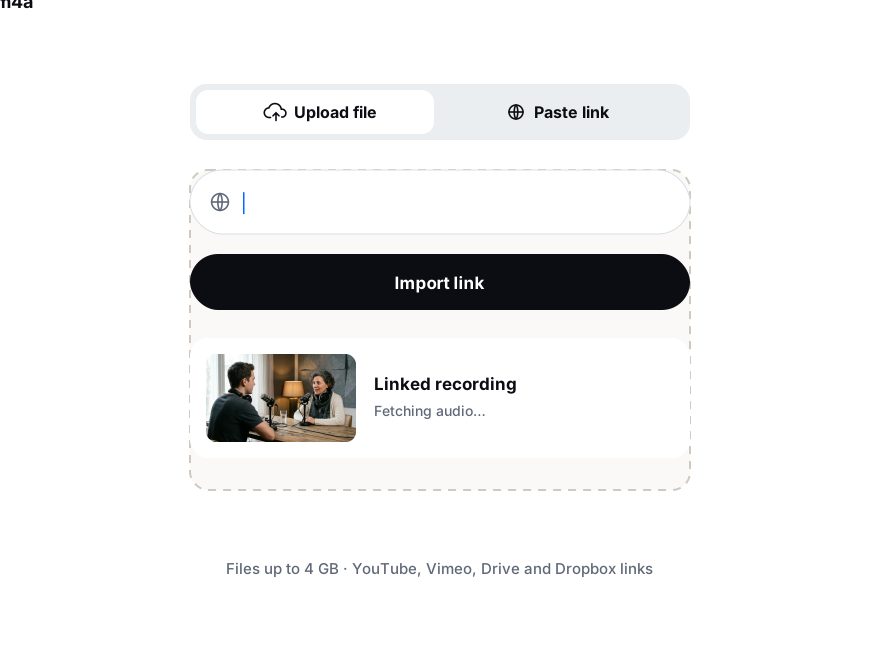
From User Hub → Recordings, or take the local recording from your computer.
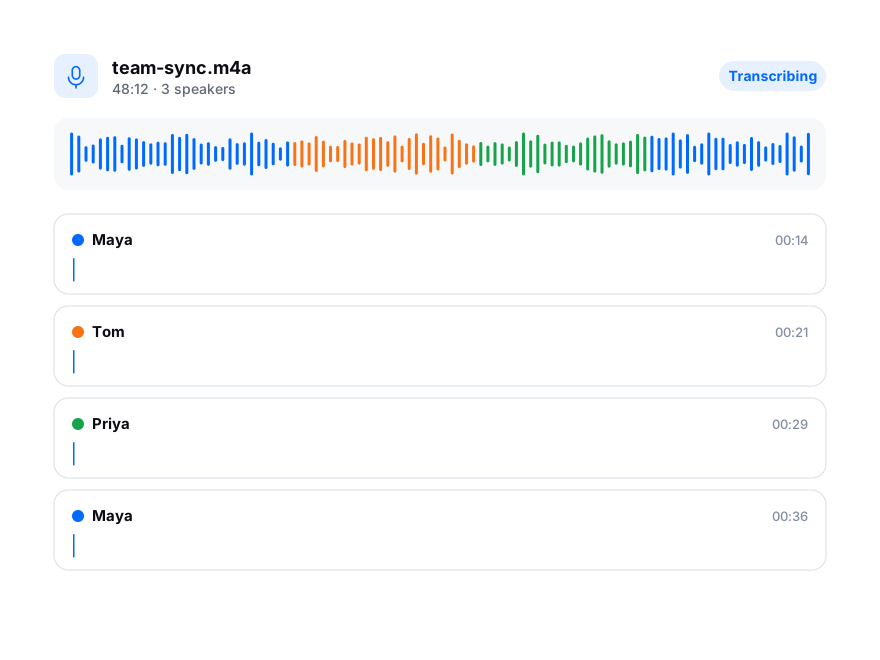
Drop in the file, choose the meeting language and turn on speaker recognition.
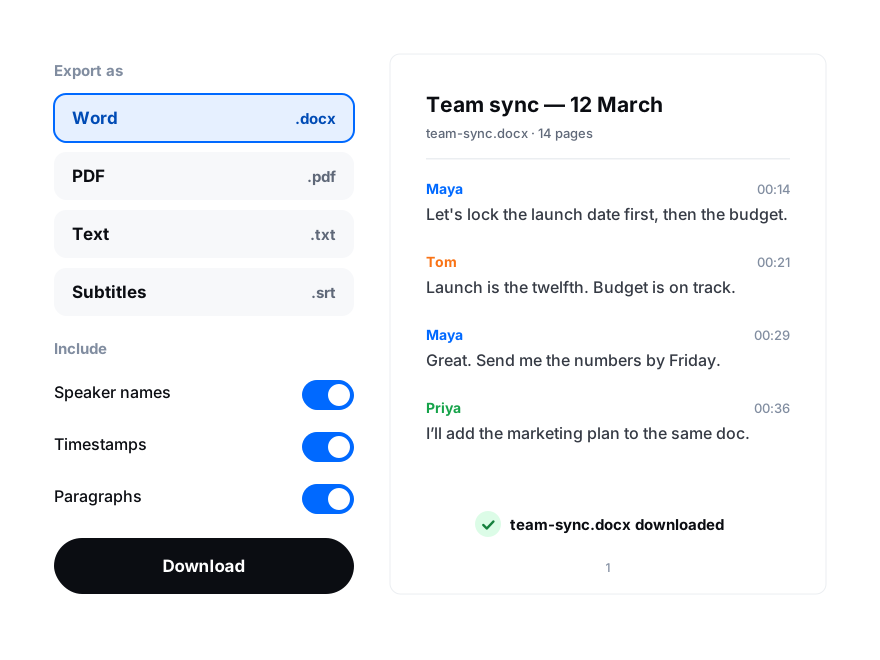
Rename speakers to participants, then export DOCX, PDF, TXT or SRT.