Transcription with Timestamps on Every Line
Every line of the transcript gets the time it was said, and when you export you choose: a timestamp on each line, one every 5 to 30 seconds, or none at all.
Timestamps in TXT, DOCX, PDF, SRT, VTT, CSV, XLSX and JSON · 120+ languages
Every line knows when it was said
The first rule of editing: cut the intro.
Nobody waits two minutes for the point.
Chapters help people come back to an episode.
Then the show notes almost write themselves.
Click or drag & drop to upload your audio or videoTap to upload your audio or video
MP3, MP4, M4A, MOV, MKV, WEBM, AVI, WAV, FLAC, AAC, OGG, OPUS, WMA, WMV
No credit card required · Stored in the EU · Never used for AI training
What Timestamps Are For


A timestamp next to a quote lets an editor or a reviewer jump to the exact moment and hear it for themselves.
Timecodes from the transcript become YouTube chapters and podcast show notes without scrubbing through the episode again.
Researchers keep a time reference on every excerpt, so a coded quote can always be traced back to the recording.
How Timestamps Look in Each Export Format
The same transcript, exported seven ways. This is exactly how the time appears in each file.
- TXT
- Above each line: [00:01:14.200], next to the speaker name if you keep it
- DOCX and PDF
- Above each paragraph: (1:14 - 1:19), start and end
- SRT
- 00:01:14,200 --> 00:01:19,050, the standard subtitle cue
- VTT
- 00:01:14.200 --> 00:01:19.050, the web subtitle cue
- CSV and XLSX
- Start and End columns (1:14, 1:19) next to the text
- JSON
- start and end in milliseconds for every segment
- Interval
- TXT, DOCX and PDF: every line, or grouped into paragraphs every 5, 10, 15, 20 or 30 seconds
Pick the Right Timing Before You Export
Timestamps are recorded once; how many you show is a choice at export.
Readers
Fewer stamps for reading
For a document people will read, paragraphs every 30 seconds keep the text calm and still let anyone find the moment.
Analysis
Every line for coding
For interview analysis or legal review, keep a timestamp on every line so each excerpt has its own reference.
Subtitles
SRT and VTT always keep timing
Subtitle files can’t exist without timecodes, so the interval setting doesn’t apply to them. Use them for players and editors, not for reading.
How to Get a Transcript with Timestamps
From recording to finished text in three steps.
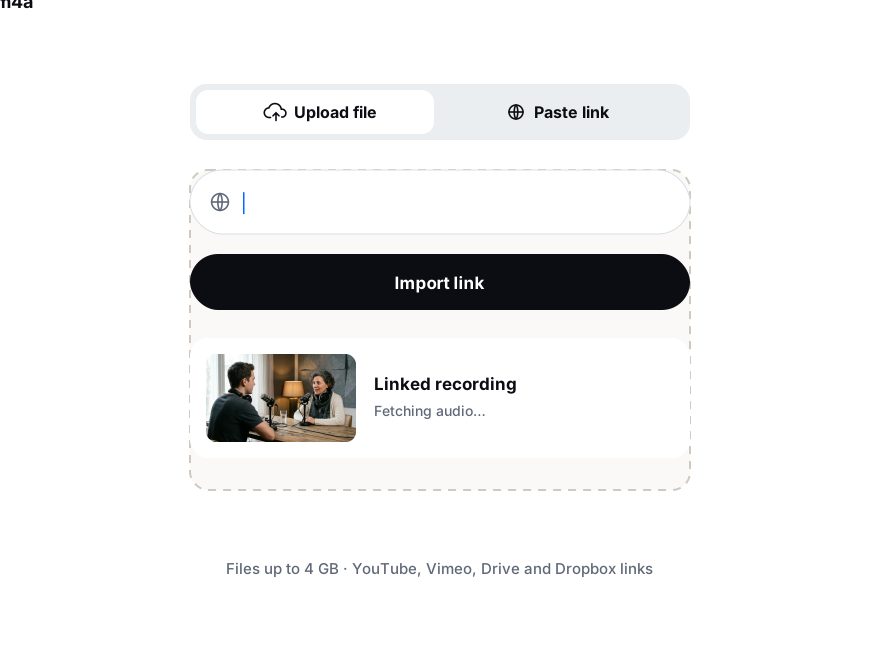
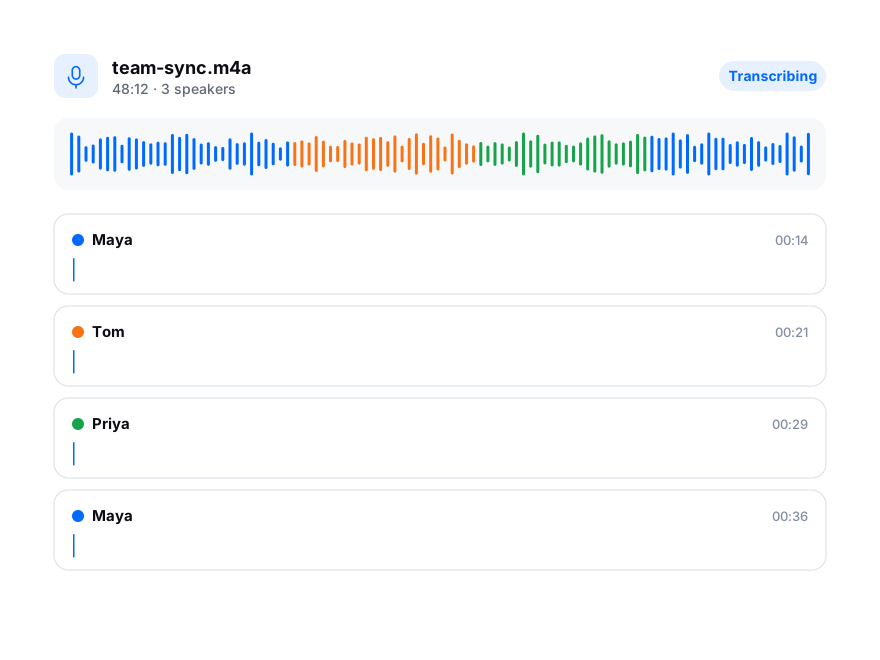
Add audio or video up to 8 GB, or paste a link. Turn on speaker labels if more than one person talks.
Click any line to hear it; the editor follows playback, so fixing a word never breaks the timing.
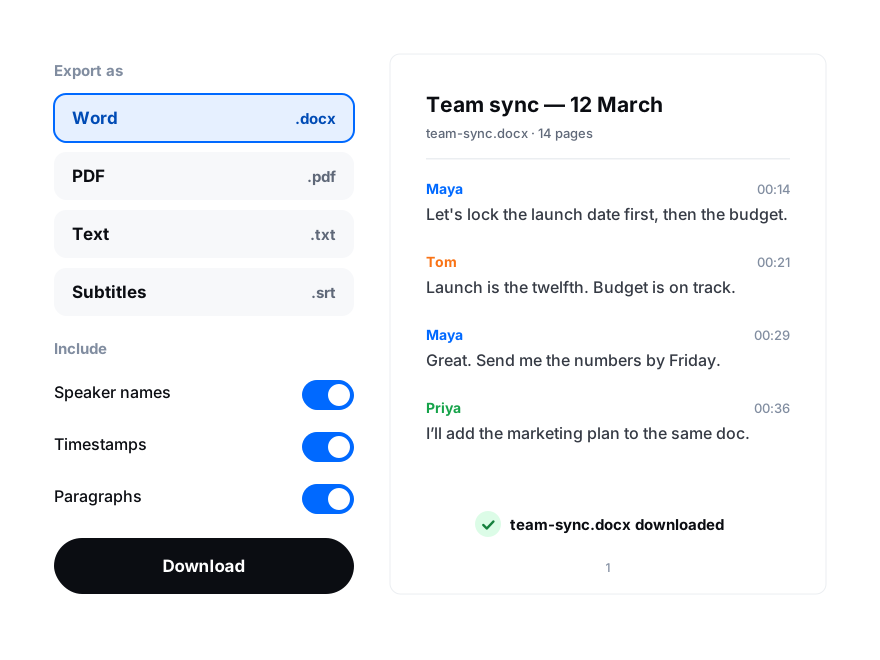
Choose the format, keep timecodes on and set the interval: every line or every 5–30 seconds.