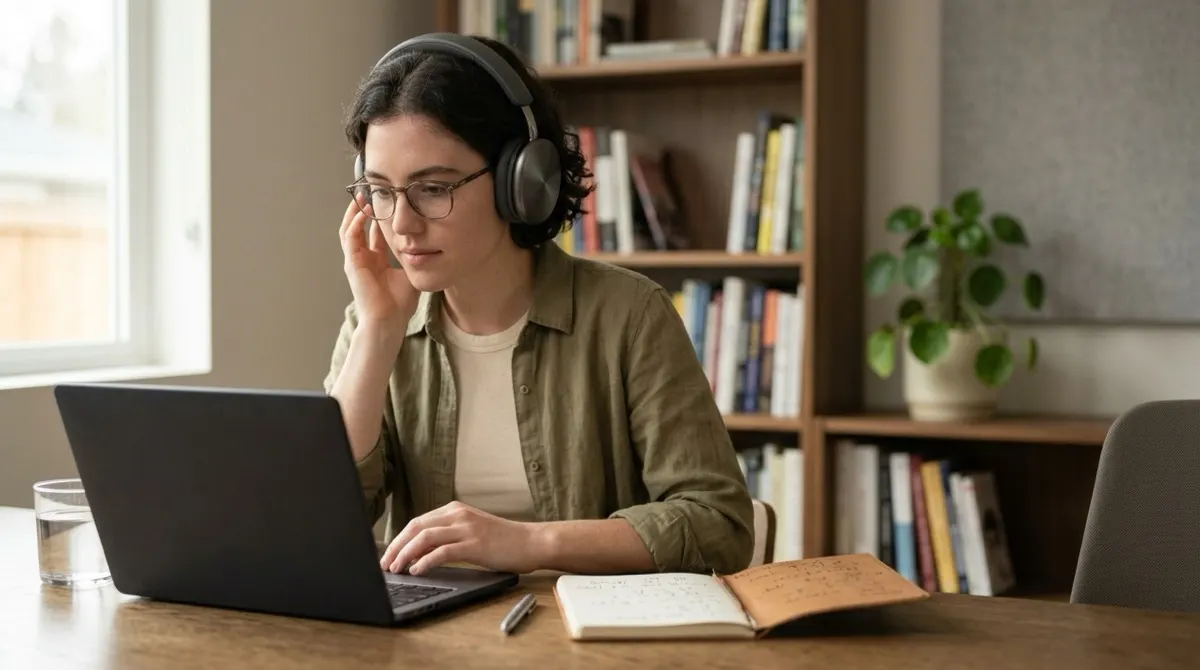

Captions land exactly on the speech. I used to spend evenings nudging lines around by hand.
Add Subtitles to VideoAutomatically, in Your Style
Upload a video and AI writes the subtitles from the speech. Pick a caption style, see it on your own footage, and export an MP4 with subtitles burned in — or SRT and VTT files.
MP4, MOV, MKV & more · up to 4 GB · 120+ languages · export MP4, SRT, VTT
AI writes them from the speech
promo-cut-v4.mp4Writing subtitlesDone
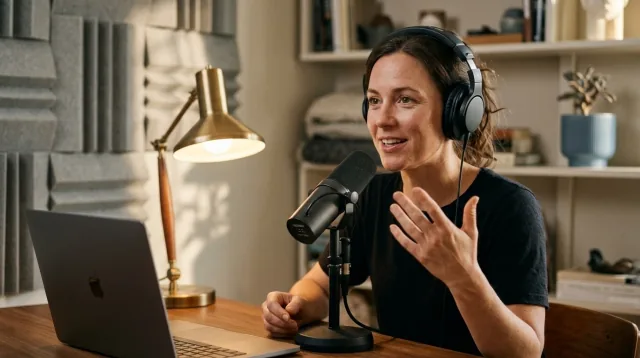
Most people quit in the first month.Not because the idea was bad,but because nobody saw it.
English · timed to the voice120+ languages
Click or drag & drop to upload your audio or video
MP3, MP4, M4A, MOV, AAC, WAV, OGG, OPUS, MPEG, WMA, WMV
No credit card required · Files encrypted · Never used for AI training
Subtitles That Look Like They Belong


Clean box for talking heads, Bold outline for social, Classic yellow for film, Minimal for brand videos — plus Word highlight and Single word for short-form.
The caption sits on your actual video while you edit. What you see in the preview is what ends up in the MP4.
Horizontal or vertical, the layout adapts: shorter lines and a higher position on 9:16 so captions stay clear of the platform’s buttons.
How to Add Subtitles to a Video
Four steps, no editing software.
Add Subtitles Free90 free minutes · No credit card


Drop in a file up to 4 GB or paste a YouTube or Vimeo link, and choose the spoken language. AI writes timed subtitles from the speech.
Choose one of six styles and see it on your own footage. Fix names and terms in the lines next to the video.
Show the whole line at once, reveal words as they’re spoken, or flash one word at a time — timed to the voice.
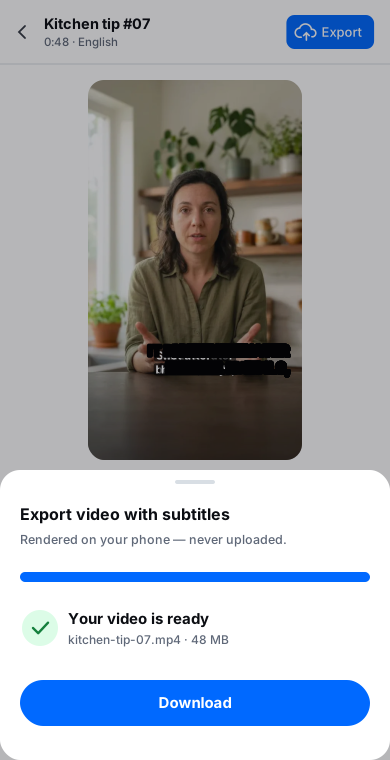
The video renders in your browser with the subtitles burned in, in the size and shape of your original. Prefer files? Export SRT or VTT.
Everything Between a Raw Video and a Subtitled One
One tool from speech to a finished file.
Timing to the word
Subtitles land on the speech, and word-level timing drives the word-by-word effects.
Subtitles in 120+ languages
Subtitle videos in the language that’s spoken — English, Spanish, Polish, Turkish, Korean and many more.
Translate, then burn in
Turn the same subtitles into 60+ languages with the timing kept, and export the translated version as an MP4.
Readable line breaks
Lines are split for comfortable reading speed, so viewers aren’t racing the text.
Captions that follow the voice
Reveal words as they’re spoken, highlight the current word, or show one word at a time.
Made for every player
An MP4 that shows the same subtitles on every player and platform — even when it’s reshared or downloaded.
Export SRT and VTT too
Need a subtitle file instead? SRT and VTT work with YouTube, course platforms and editors like Premiere and DaVinci.
Private by default
The MP4 is rendered on your computer, and your files are never used to train AI.
Burned-In Subtitles or a Subtitle File?


Instagram, TikTok and LinkedIn autoplay on mute and either ignore SRT files or restyle captions their own way. Burned-in subtitles look exactly as you designed them, wherever the video ends up.
YouTube, course platforms and accessibility workflows prefer SRT or VTT: viewers can switch subtitles off, resize them or pick a language. You can export both from the same project.
Edit Next to Your Video
Subtitles on one side, your video with the live caption on the other, and the timeline below.
Start free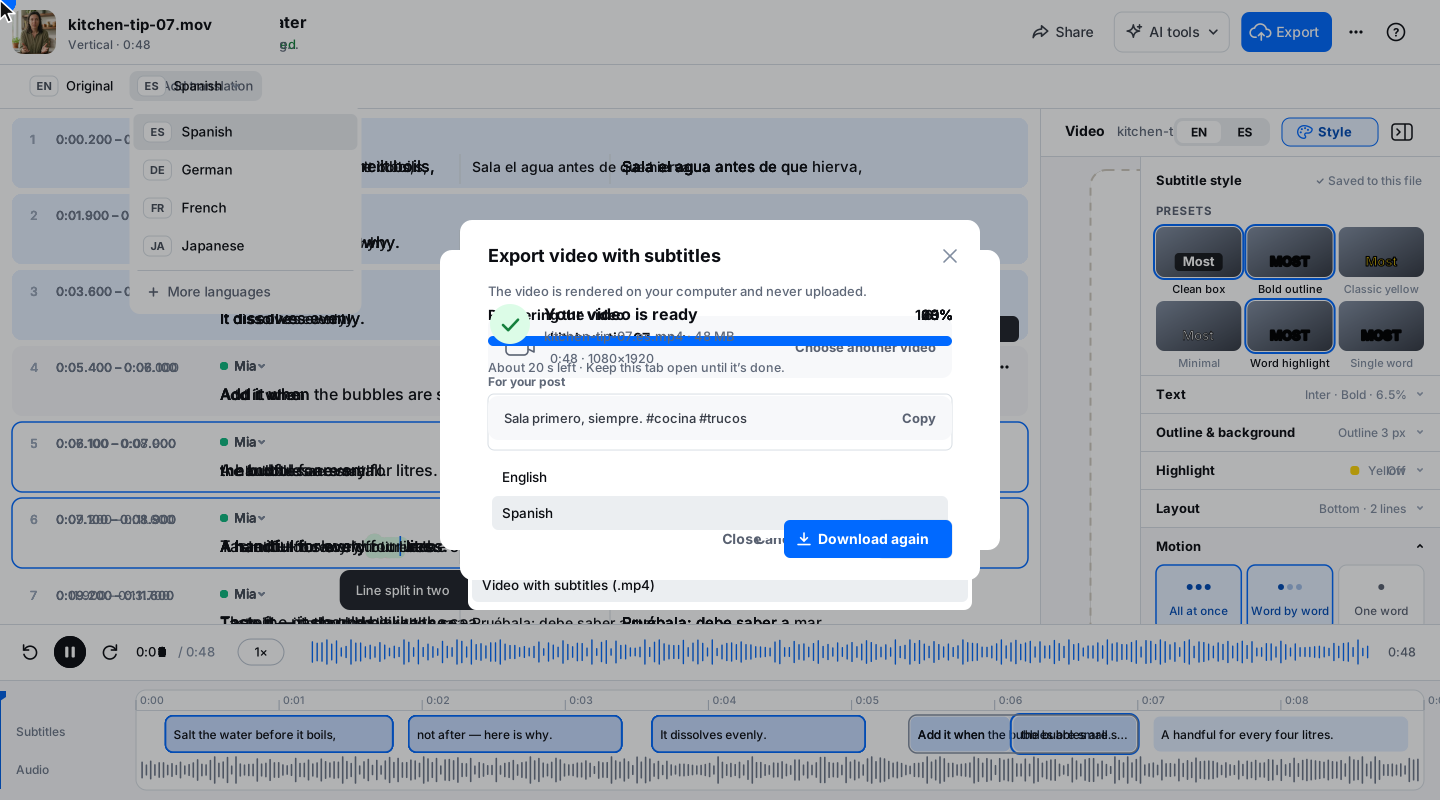
Loved by Creators, Teams and Researchers
Rated Excellent 4.8/5 based on 580+ reviews
YouTube kept mangling our brand names. Now I fix them once in the editor and upload a clean SRT.
Uploaded a two-hour recording during lunch — the transcript was waiting before I finished my coffee. The accuracy genuinely surprised me.
Our legal team approved it because processing stays on EU infrastructure. That alone ruled out most of the competition.
Captions split where a human would split them. Viewers stopped complaining about walls of text.
Added captions to every short — average watch time rose noticeably within a month.
No card, no tricks — I tested real files before paying and upgraded a week later because the workflow stuck.
Had trouble with a huge file — support walked me through batch upload the same morning. Rare these days.
Upload the video, let AI write the subtitles, pick a style and export. A free account starts with 90 minutes of transcription. The MP4 with burned-in subtitles is free for the first 90 seconds of a video, with a small BlaBlaScribe watermark; paid plans export the full video without it.
Burned-in (open) subtitles are part of the picture and show on every player. Regular (closed) subtitles are a separate SRT or VTT file that viewers can turn on or off. BlaBlaScribe exports both.
Yes. Choose from six styles, place the caption at the top, middle or bottom, and pick how words appear — the whole line, word by word, or one word at a time. The preview on your video matches the exported MP4.
The same as your original. The MP4 keeps your video’s size and aspect ratio — a 4K horizontal video stays 4K and horizontal, a 9:16 clip stays vertical.
No. The MP4 is rendered on your computer, so that step doesn’t send your video anywhere. Transcription does run on our servers, and files are never used to train AI.
Yes. Generate subtitles in the spoken language, translate them into any of 60+ languages, and burn in the translation.
An up-to-date Chrome, Edge or Safari. Rendering takes a while for long videos — keep the tab open until it’s done.
Up to 4 GB per file for upload and transcription.