Meeting Transcription Without a Bot in the Call
Record the meeting the way you already do, upload the file and get a meeting transcript with speakers and timestamps; on paid plans, add a summary with key highlights and action items.
Zoom, Google Meet, Teams and Webex recordings, phone audio · up to 8 GB
Record as usual, upload afterwards
Can we move the launch to May?
Only if the budget is set by Friday.
I will confirm with finance today.
Click or drag & drop to upload your audio or videoTap to upload your audio or video
MP3, MP4, M4A, MOV, MKV, WEBM, AVI, WAV, FLAC, AAC, OGG, OPUS, WMA, WMV
No credit card required · Stored in the EU · Never used for AI training
When Uploading Beats a Notetaker Bot


Nothing joins the call and nobody has to approve an assistant. You transcribe the recording afterwards.
Calls in 120+ languages, including those built-in transcripts don’t cover, with the option to translate the minutes.
A phone on the table records a board meeting or a workshop; the transcript works the same as for a call.
From Meeting Recording to Minutes
What the transcript and the summary contain.
- Speakers
- Up to five voices labelled; rename them to participants’ names
- Timestamps
- On every line, so decisions can be traced to the moment
- Summary
- Executive summary, key highlights, action items with owners and deadlines if mentioned, conclusion (Creator and up)
- Export
- DOCX or PDF for minutes, TXT on the free plan
- Sources
- Any meeting recording: Zoom, Google Meet, Teams, Webex, phone or recorder
- Privacy
- Processed in the EU, never used to train AI
Before You Upload a Meeting
Three things that save editing time.
Consent
Tell people you are recording
Rules differ by country and US state. Announce the recording at the start; it is also on the record then.
Speakers
Count the voices
Choose the number of people who spoke, up to five. For larger meetings, focus on the main speakers and reassign the rest by hand.
Names
Add project and client names
Put product names, acronyms and people into My terms so the minutes need fewer corrections.
How to Transcribe a Meeting Recording
From recording to finished text in three steps.
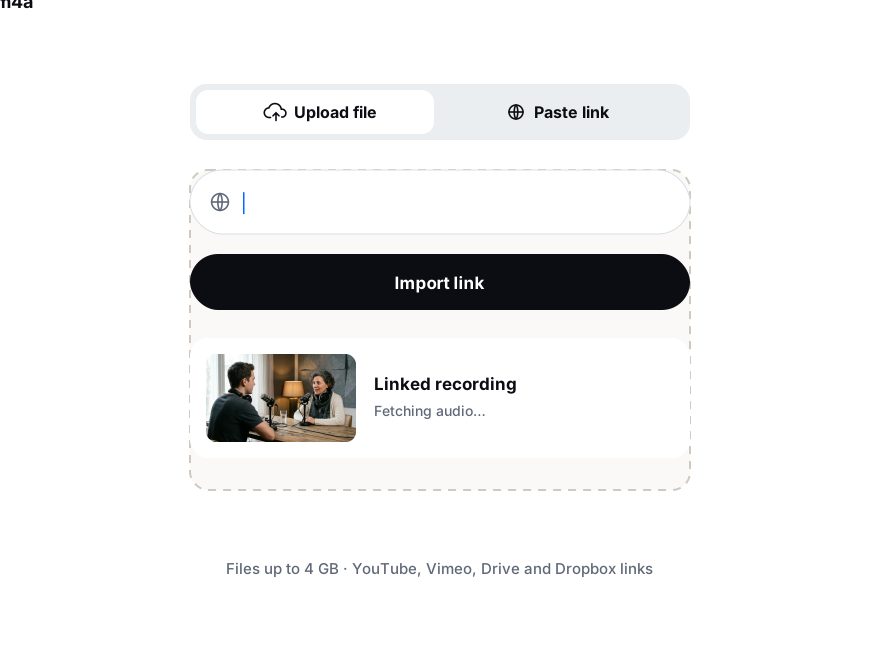
Add the file from Zoom, Meet, Teams or your phone, or paste a Google Drive link.
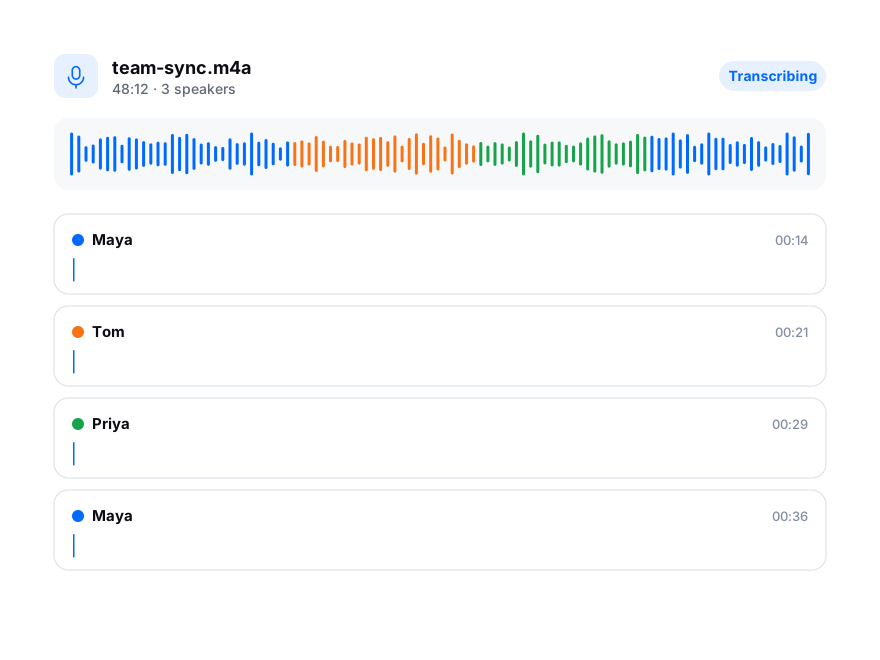
Choose the meeting language, turn on speaker recognition and set how many people spoke.
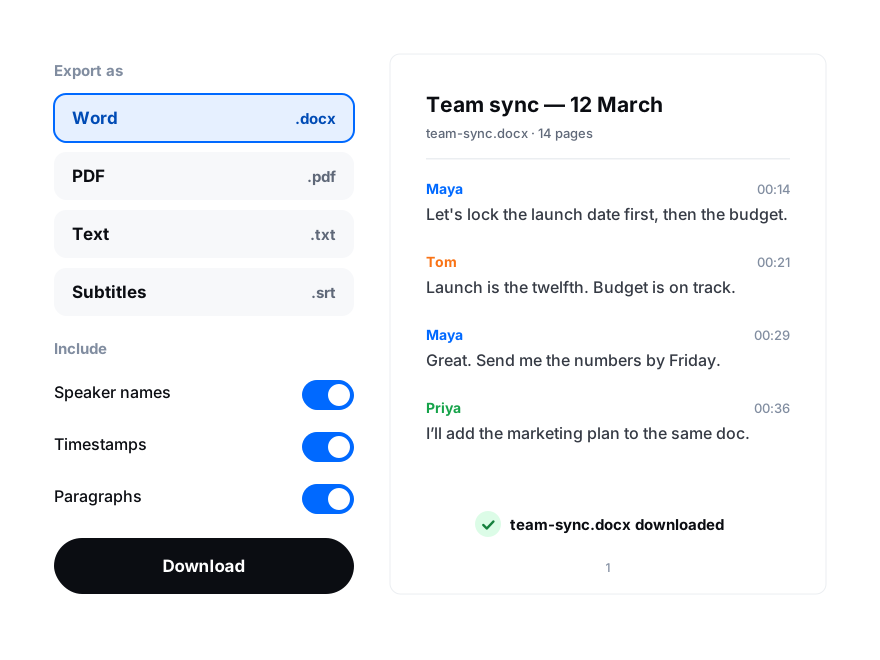
Rename speakers, create a summary with action items on paid plans, export DOCX or PDF.