Google Drive Transcription Straight from a Share Link
Set the file to “Anyone with the link”, paste the link here and the recording is fetched straight from Drive and transcribed, with no download and re-upload on your side.
Drive links to audio and video files · up to 8 GB
Anyone with the link, then paste
Click or drag & drop to upload your audio or videoTap to upload your audio or video
MP3, MP4, M4A, MOV, MKV, WEBM, AVI, WAV, FLAC, AAC, OGG, OPUS, WMA, WMV
No credit card required · Stored in the EU · Never used for AI training
Why Transcribe Straight from Drive


A two-hour recording already in Drive doesn’t need to come back to your laptop and go up again.
Meeting recordings and shared folders live in Drive; a link is enough to get the transcript.
Drive auto-captions videos in 29 languages. Transcripts here cover 120+, with speakers and exports.
Google Drive and Transcripts at a Glance
Drive sharing settings decide whether a link can be transcribed.
Facts checked 7 November 2026, against Google Drive Help
- “Anyone with the link”
- Opens without signing in, so the file can be fetched
- Restricted links
- Need a Google sign-in and can’t be fetched by an outside service
- Work and school accounts
- Admins may block link sharing outside the organisation
- Drive’s own captions
- Automatic captions for videos in 29 languages; a transcript panel next to the player
- Largest Drive file
- 5 TB; files up to 8 GB are accepted here
- Viewer downloads
- Owners can turn off download, print and copy for viewers
Before You Paste a Drive Link
Almost every Drive import that fails is a sharing setting.
Access
Switch to “Anyone with the link”
Share → General access → Anyone with the link. You can switch it back to Restricted once the transcript is ready.
Organisation
Check your admin’s rules
Some work and school accounts can’t share outside the organisation. Download the file and upload it instead.
File, not folder
Link one file at a time
A folder link has no single recording. Paste one file link per line to transcribe several.
How to Transcribe a File from Google Drive
From link or file to editable text in three steps.
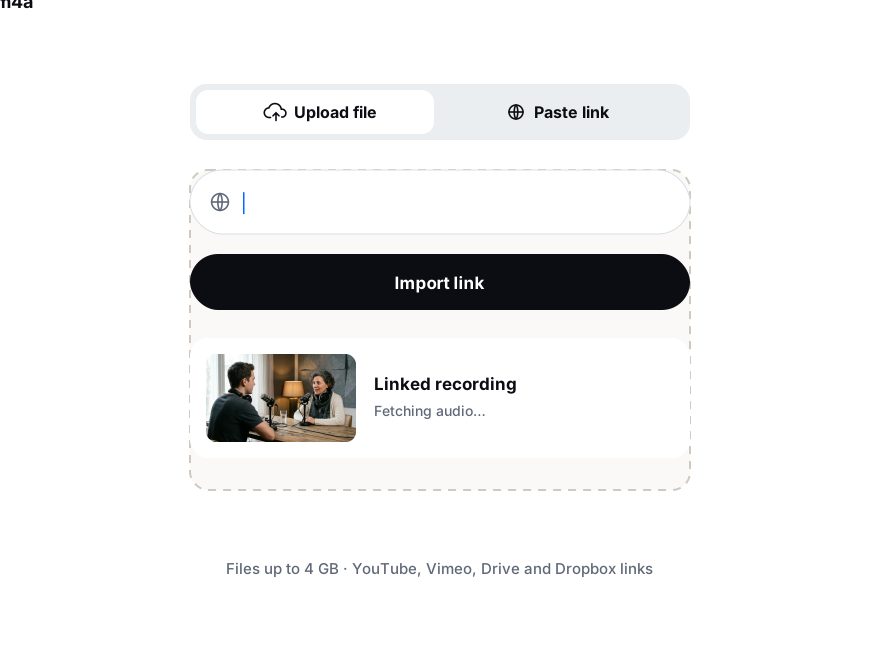
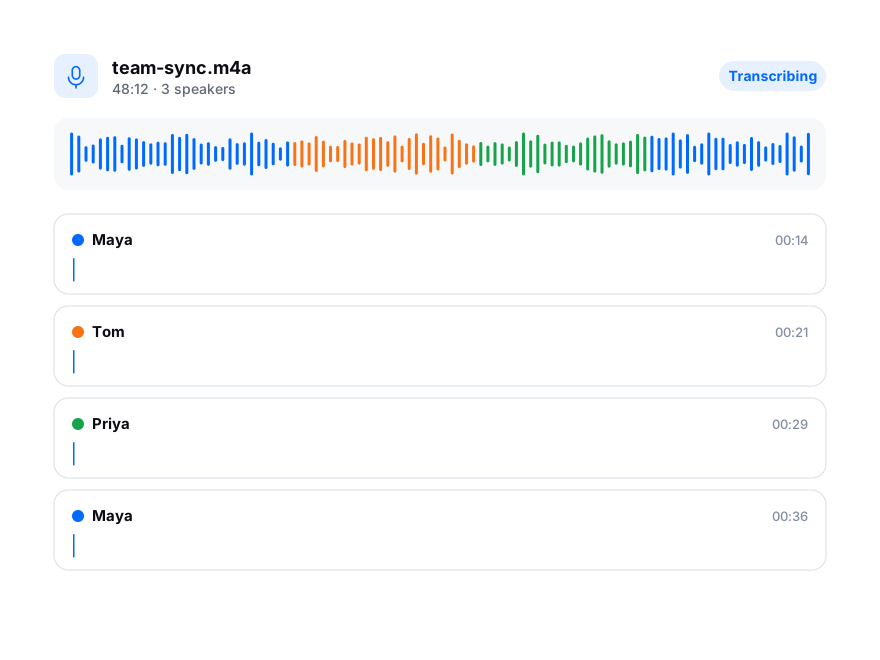
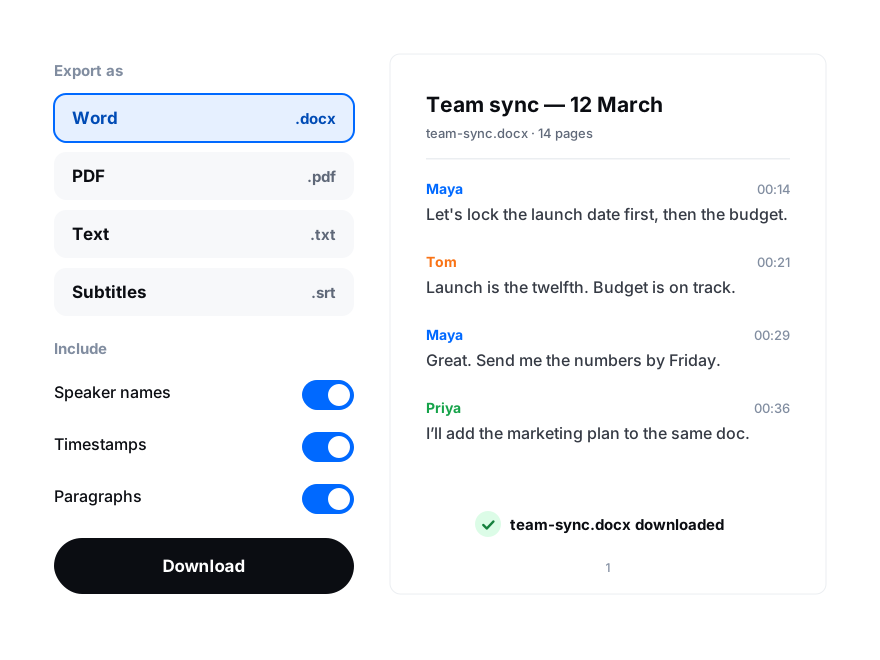
In Drive, open Share, set General access to “Anyone with the link” and copy the link.
Choose Paste a link, set the language and turn on speaker recognition if needed.
Download DOCX, TXT or SRT, then set the Drive file back to Restricted if you like.