Auto Captions: How to Turn Them On (TikTok, Instagram, YouTube, LinkedIn) and Style Them
Dzianis Kukareka, Founder · Updated
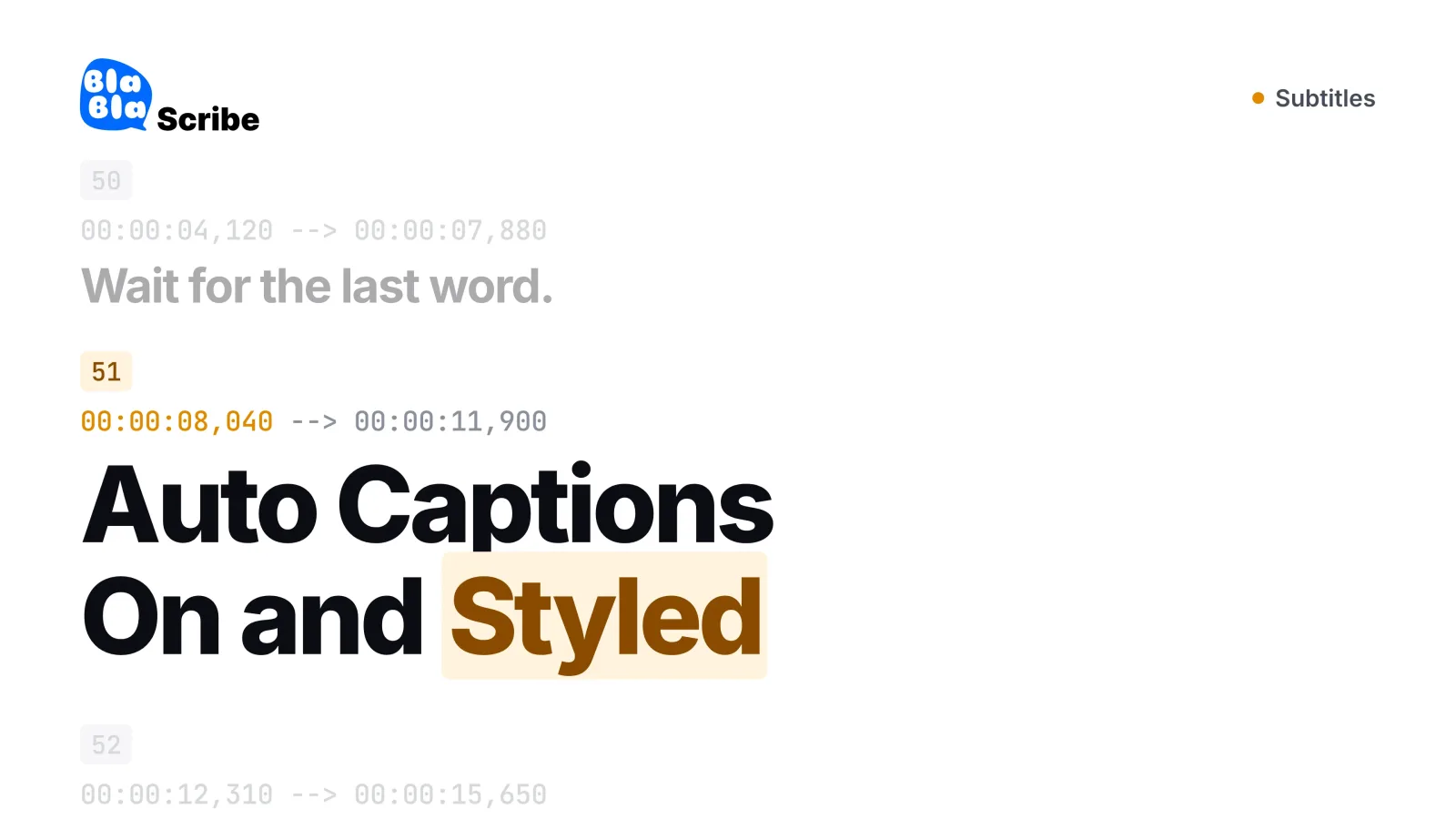
Auto captions are subtitles a platform writes for you with speech recognition. On TikTok they're generated automatically for uploaded videos and you choose the video language under More options on the post screen; on Instagram you switch on "Enable closed captions" under More options before sharing a reel; YouTube creates them automatically in 67 languages and you fix them in YouTube Studio; on LinkedIn you turn on "Add auto captions" when you upload. These are closed captions: they live on that one platform, and they look the way the platform decides.
If you want your own look (big words, a highlighted current word) or one video that works on every platform, you burn the captions into the video instead. The second half of this guide covers that.
What are auto captions (and do they use AI)?
Auto captions come from automatic speech recognition, an AI model that turns speech into text with timestamps. The platform then shows that text over the video in sync with the audio. Instagram describes its version as created with "speech recognition technology", and TikTok uses the same wording.
Platform auto captions are closed captions: stored as data, not as pixels, and shown by the app. Captions burned into the picture are open captions, which travel with the video file anywhere you post it. The difference matters as soon as you post the same clip in more than one place; see open captions vs closed captions.
Auto captions are a draft, not a finished result. A W3C Web Accessibility Initiative draft on the topic puts it bluntly: automatically generated captions "should never be used as the sole method to produce captions". Names, numbers, jargon and anything said over music are where they usually go wrong, so read them through before you post.
Where to turn on auto captions: every platform at a glance
| Platform | Where to turn on | How to edit | Languages |
|---|---|---|---|
| TikTok | Generated automatically for uploaded videos; set the language on the post screen: More options → Select video language | Tap the caption on your video → Edit captions → Save | Not published in the help center |
| Instagram Reels | Reel → Next → Next → More options → Enable closed captions (also for posted reels through Edit) | Not covered in the captions help article | Not published in the help center |
| YouTube (including Shorts) | Automatic | YouTube Studio → Subtitles → your video → More | 67; live streams: English only |
| When uploading: Add auto captions (plus "Review captions before viewers can see them") | More → Edit captions | 10 | |
| Facebook (viewer setting) | Settings & privacy → Settings → Media → Always Show Captions | Not applicable | Not published |
Steps were checked in each platform's help center in November 2026. Apps rename menus often; if a label differs in your app, look under More options or Accessibility.
How to turn on auto captions on TikTok
TikTok auto captions don't need a switch. According to TikTok's accessibility help page, captions are generated automatically for videos you upload. What you control is the language:
Upload or record a video in the TikTok app.
On the post screen, tap More options.
Tap Select video language and choose the language spoken in the video.
Tap Post. Eligible videos show auto-generated captions in that language.
To fix a wrong word after posting, open your video, tap the caption, tap Edit captions, make the change and tap Save. You can also remove captions there.
TikTok creator captions
Creator captions are TikTok's styled option. On the preview screen, tap Captions on the side panel and TikTok transcribes the speech into text. You can check and edit each line, and creator captions let you change the font style and color. The first time, TikTok asks you to opt in to the feature.
How to do auto captions on Instagram Reels
Instagram auto captions are a toggle you set before or after posting. From Instagram's help article on closed captions for reels:
Tap Create at the top (or swipe right in Feed), then tap Reel.
Pick a video and tap Next, then Next again.
Tap More options and turn on Enable closed captions. The Translate closed captions toggle is in the same place.
For a reel you've already posted, go to your profile, open the reel, tap Options → Edit → More options, and use the same toggles. Posted reels follow your caption settings by default. Instagram says this feature isn't available on computers, only in the Android and iPhone apps.
Can you edit auto captions on Instagram?
The closed captions help article covers turning captions and their translation on and off, not correcting individual words. If you need exact wording on screen, add the text yourself with the Captions sticker or text tools, or upload a video with captions already burned in.
How to turn on auto captions on YouTube (and Shorts)
YouTube generates automatic captions on its own for long videos and Shorts. According to YouTube's automatic captioning help, they're available in 67 languages, and they may not be ready right after upload because processing takes time.
To correct them, open YouTube Studio, choose Subtitles in the left menu, click the video, then click More next to the subtitle track and edit or remove the parts that are wrong. How good the raw captions are is covered in how accurate YouTube auto-captions are.
Live automatic captions are more limited: English only, turned on per stream rather than for the whole channel, only with normal latency, and rolling out to channels with more than 1,000 subscribers. After the stream, YouTube generates new captions for the recording.
As a viewer, you turn captions on with the CC button on the player.
How to add auto captions to LinkedIn videos
LinkedIn has a toggle at upload. From LinkedIn's auto captions help:
On a computer: after you choose a video, turn on Add auto captions and, if you want to check them first, Review captions before viewers can see them.
In the mobile app: tap the Captions icon at the bottom of the screen and use the same toggles.
Review: after posting, a banner says "Auto captions are ready for review". Tap Review, then Approve.
Edit: open the post's More menu and choose Edit captions. You can change single captions or remove them all.
LinkedIn auto captions support English, Spanish, Portuguese, French, German, Italian, Indonesian, Turkish, Arabic and Dutch. For scheduled posts, you can only review the captions after the video goes live. If your video already has captions burned in, leave auto captions off so viewers don't see two layers of text.
Why are captions auto-generated on Facebook?
Meta lists auto-generated captions as an accessibility feature on Facebook and Instagram, and says that if they don't appear automatically, you may need to turn them on in the app's settings. On a computer, click your profile picture → Settings & privacy → Settings → Media and toggle Always Show Captions; this applies only to videos you watch on a computer (Facebook Help). On an iPhone, Facebook follows the system setting: Settings → Accessibility → Subtitles & Captioning → Closed Captions + SDH. Not every video has captions, so if you publish on Facebook, adding your own captions is the reliable route.
Auto captions in CapCut, Premiere Pro, DaVinci Resolve and Canva
Video editors generate captions too, and these become part of your project, so you can style them and burn them in.
Premiere Pro transcribes with Speech to Text. Adobe lists 18 supported languages, and languages beyond the default need a language pack download. Premiere also has a single-word captions option. Guide: add subtitles in Premiere Pro.
DaVinci Resolve creates subtitles from timeline audio (Timeline → Create Subtitles from Audio). Blackmagic's feature guide for version 18.5, where this arrived, marks Auto Caption as "Studio Version Only", so the free version means typing subtitles or importing an SRT. Guide: add subtitles in DaVinci Resolve.
CapCut has auto captions; what's free depends on your plan, region and app version, so check the upgrade screen before you build a workflow on it. Guide: add subtitles in CapCut.
Canva, Final Cut Pro and iMovie: see our guides for Canva, Final Cut Pro and iMovie.
How to style auto captions so people actually read them
Platform auto captions come in the platform's own style, and you can't change much. Styled captions, the big bold words you see on Reels and TikTok, are almost always burned into the video before upload. Here's what works.
Caption styles that work on Reels, TikTok and Shorts
| Style | What it looks like | Best for | Watch out for |
|---|---|---|---|
| Classic (1 to 2 lines) | A full sentence near the bottom | Talking heads, tutorials | Hidden by app buttons if placed too low |
| Word-by-word reveal | Words appear as they're spoken | Storytelling, pacing | Needs accurate word timing |
| Single word | One big word at a time | Fast hooks, short clips | Tiring on long videos |
| Word highlight | The current word changes color | Explainers, a karaoke feel | The highlight color must contrast with the box |
| Hormozi style | One to three bold words, thick outline, occasional color accents | Punchy talking-head clips | Easy to overdo; keep accents rare |
Word-by-word and highlight styles depend on word-level timestamps: each word needs its own start and end time, or the reveal drifts away from the voice. A word-by-word caption generator does that timing for you.
Font, size and contrast
Use a bold sans-serif font, large enough to read on a phone at arm's length, with an outline or a solid box behind it so it stays readable on any background. Keep it to two lines at most. For classic subtitles, Netflix's English (USA) style guide is a good reference: up to 42 characters per line and two lines. Vertical video is narrower, so lines should be shorter still. More on this in how long a subtitle line should be.
Where to place captions
On TikTok, Reels and Shorts, the app's own interface covers the bottom of the frame (username, description, music) and the right edge (like, comment and share buttons). Place captions above the bottom panel and keep them clear of the right-hand buttons. The center or upper-middle of the frame is the safest spot for a talking head.
Emojis and color accents
A color accent on the one word that carries the point (a number, a result, a "don't") helps people scanning with the sound off. If you use emojis, use one per beat at most, so they underline the line instead of competing with it.
One captioned video for every platform
Each platform's built-in captions look different, and none of them come with the file when you post the clip elsewhere. If one video goes to three networks, it's simpler to burn the captions in once.
In BlaBlaScribe you upload the clip, get captions in 120+ languages, pick one of six presets (Clean box, Bold outline, Classic yellow, Minimal, Word highlight, Single word), choose whole-line, word-by-word or single-word reveal and a vertical frame, then export one MP4. On the free plan, the export covers the first 90 seconds with a small watermark; full-length MP4 without a watermark starts with the Creator plan at $14 a month. The captions for TikTok, Reels and Shorts page has the details, and this video tutorial shows the steps.
If you already have an SRT file, the free burn subtitles into video tool burns it into the video in your browser, without an account.
Auto captions not working? Common fixes
When auto captions don't appear or come out wrong, the cause is usually one of a handful of things the platforms' help pages name themselves:
| Symptom | Likely cause | Fix |
|---|---|---|
| No captions at all on YouTube | Still processing, unsupported language, very long video, long silence at the start | Wait, then check YouTube Studio → Subtitles; trim the silent intro |
| Captions in the wrong language on TikTok | Wrong video language selected | Set the right language under More options → Select video language |
| Garbled words | Music over speech, noise, people talking over each other | Lower the music under the voice, re-record or edit the captions |
| Mixed-up text in a bilingual video | Several languages in one video | Pick the main language and fix the rest by hand, or add your own captions |
| No caption toggle on Instagram | You're on a computer | Use the Instagram app on Android or iPhone |
| Can't review LinkedIn captions | The post is scheduled | Review after the video goes live |
| No auto captions in DaVinci Resolve | Free version | Use Studio, import an SRT, or type subtitles |
If a platform's auto captions keep failing, make your own captions and either burn them in or upload a subtitle file where the platform accepts one (YouTube takes SRT, VTT and several other subtitle file formats).
Free auto captions without a watermark
The built-in auto captions on TikTok, Instagram, YouTube and LinkedIn are free and carry no watermark. The catch is that they're closed captions, so they stay on that platform and you can't style them much. Free burned-in captions from third-party apps almost always come with a limit: a watermark, a length cap or a feature behind a paid plan. Compare the options in the best AI subtitle generators before you commit to one.
Frequently asked questions
How do I turn on auto captions?
It depends on the platform. TikTok generates them for uploaded videos (choose the video language under More options), Instagram has "Enable closed captions" under More options, YouTube creates them automatically, and LinkedIn has an "Add auto captions" toggle when you upload.
Are auto captions free?
On TikTok, Instagram, YouTube and LinkedIn, yes. In editors it varies: DaVinci Resolve's auto captions are in the paid Studio version, and CapCut's free limits depend on your plan and region.
Do auto captions use AI?
Yes. They're produced by automatic speech recognition models that turn speech into timed text; Instagram and TikTok both describe their captions as created with speech recognition technology.
Why are my auto captions not showing?
Common causes are an unsupported or wrong language, poor audio, a long silence at the start, captions that are still processing, or a device where the feature isn't available (Instagram captions can't be managed on a computer).
Can I style TikTok or Instagram auto captions?
Only within each app's options: TikTok's creator captions let you change font style and color. For your own style across platforms, burn styled captions into the video before you upload.
Do auto captions stay on the video if I repost it elsewhere?
No. Closed captions belong to the platform where you turned them on, and a downloaded or reposted file doesn't carry them. Burned-in captions travel with the video.
Turn your recordings into text you can use
Upload audio or video, paste a YouTube link, or record in the browser — and get a speaker-labeled transcript in minutes, in 120+ languages.
Try BlaBlaScribe for freeNo credit card required · Stored in the EU · Never used for AI training