How to make captions for Reels, TikTok and Shorts
Vertical videos get a Reels-ready layout on their own: big, bold words a little above the bottom. Turn on the safe zone to keep them clear of the app's buttons, then export.
Step by step
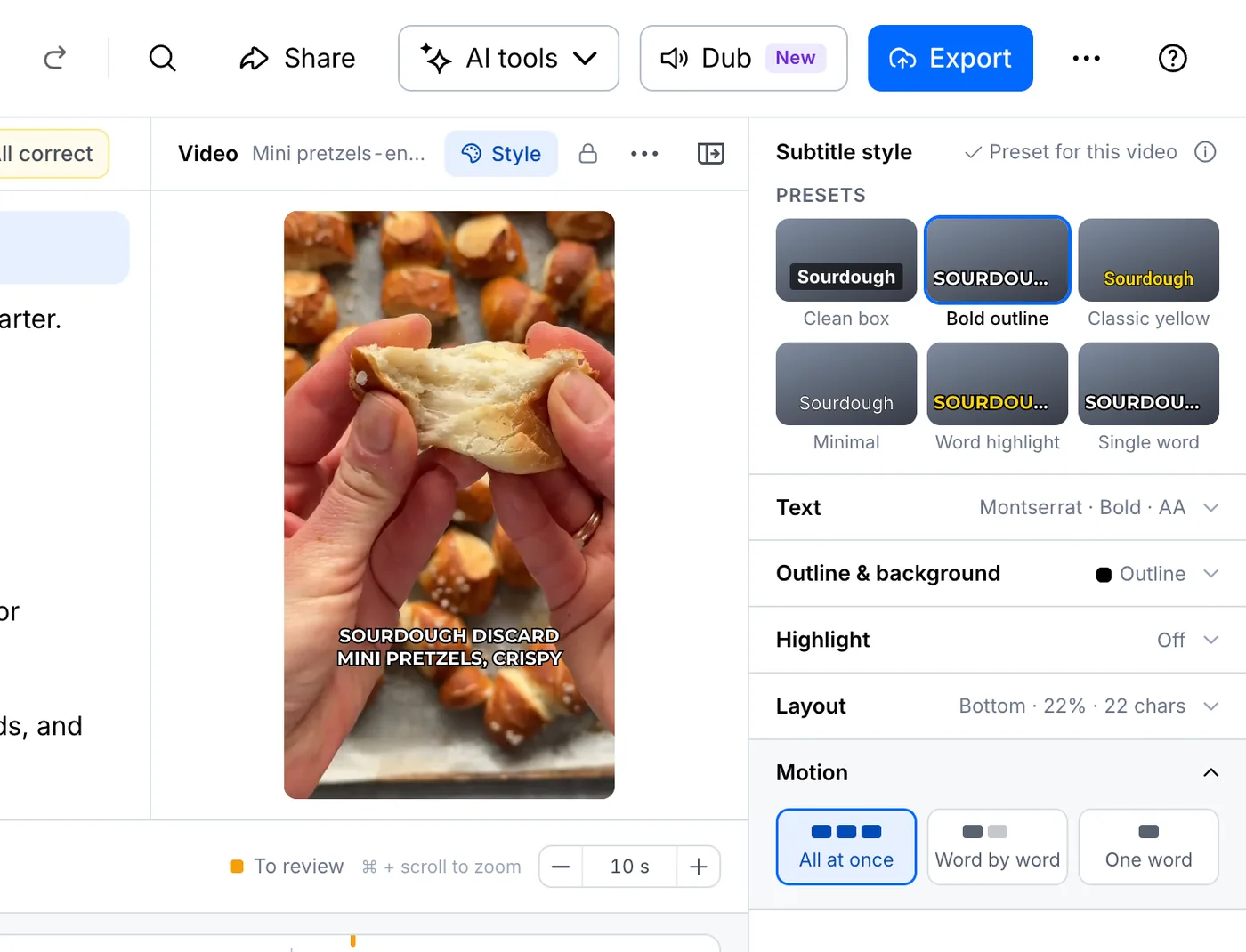
Open Style on a vertical video
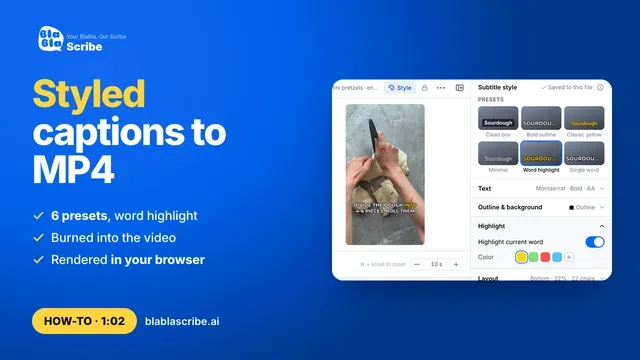
Open your vertical video and click Style. The layout is already set up for Reels, and you can switch to any preset, such as Word highlight or Single word.
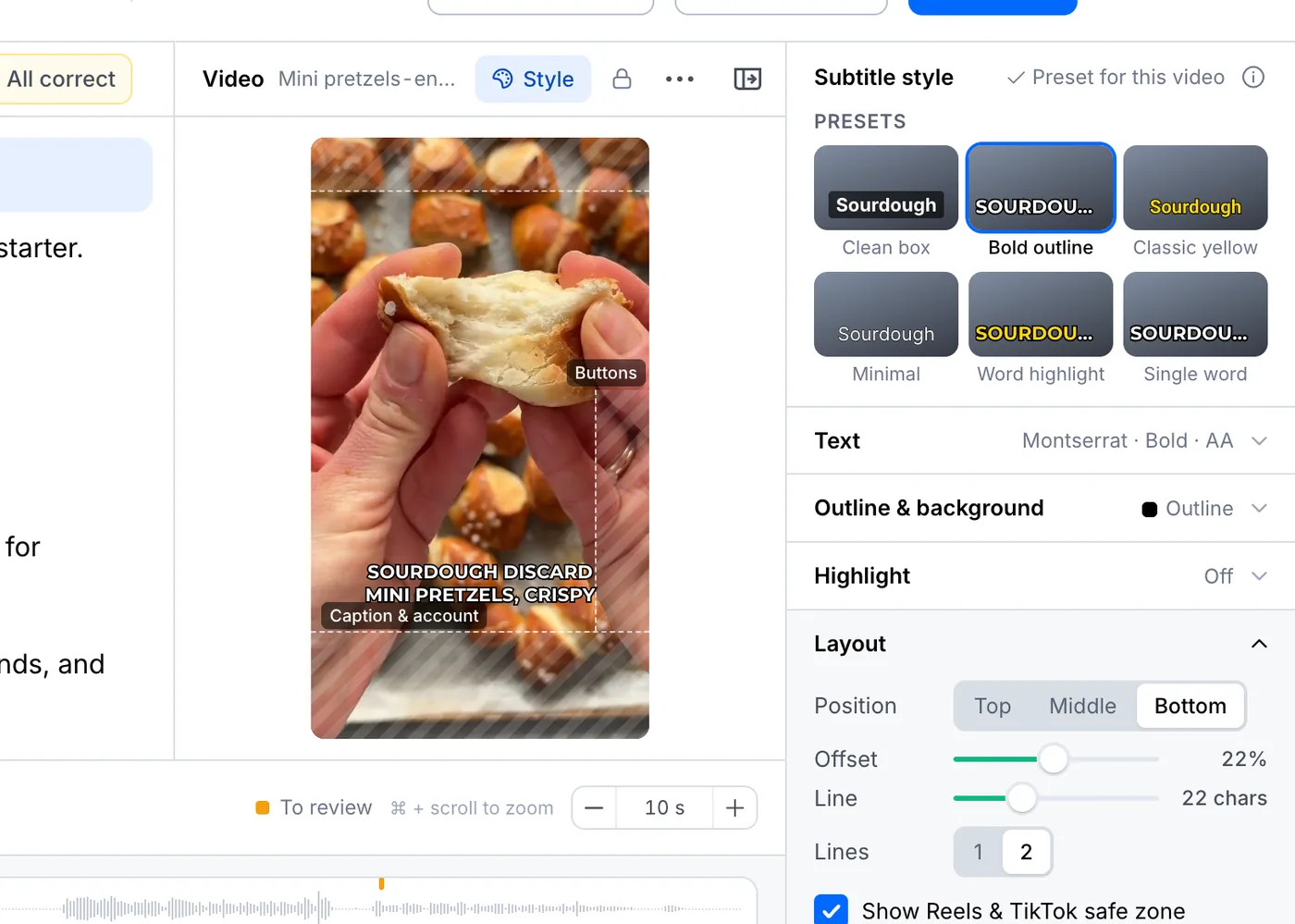
Show the safe zone
Under Layout, turn on Show Reels & TikTok safe zone. The shaded areas are where the apps put their buttons and your post caption.
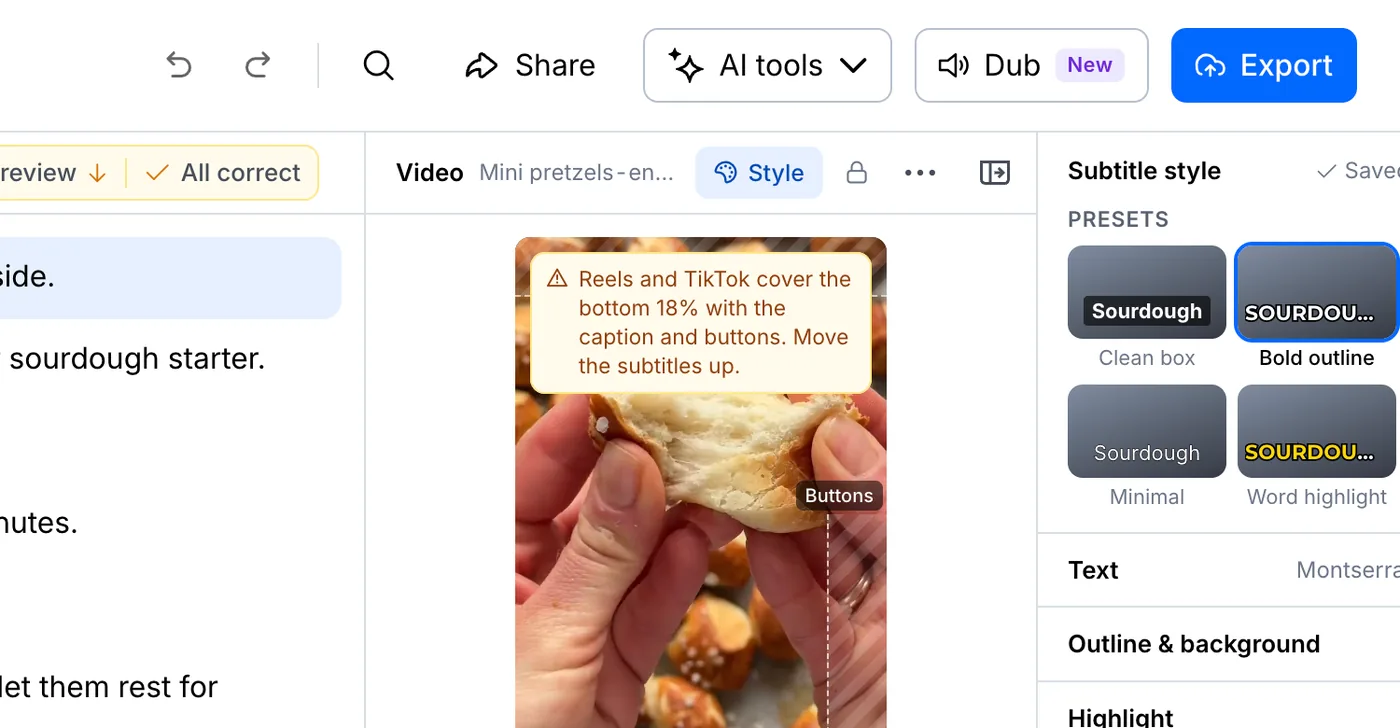
Move captions out of the way
If the subtitles drop into the shaded zone, you'll see a warning. Move them back up with Offset.
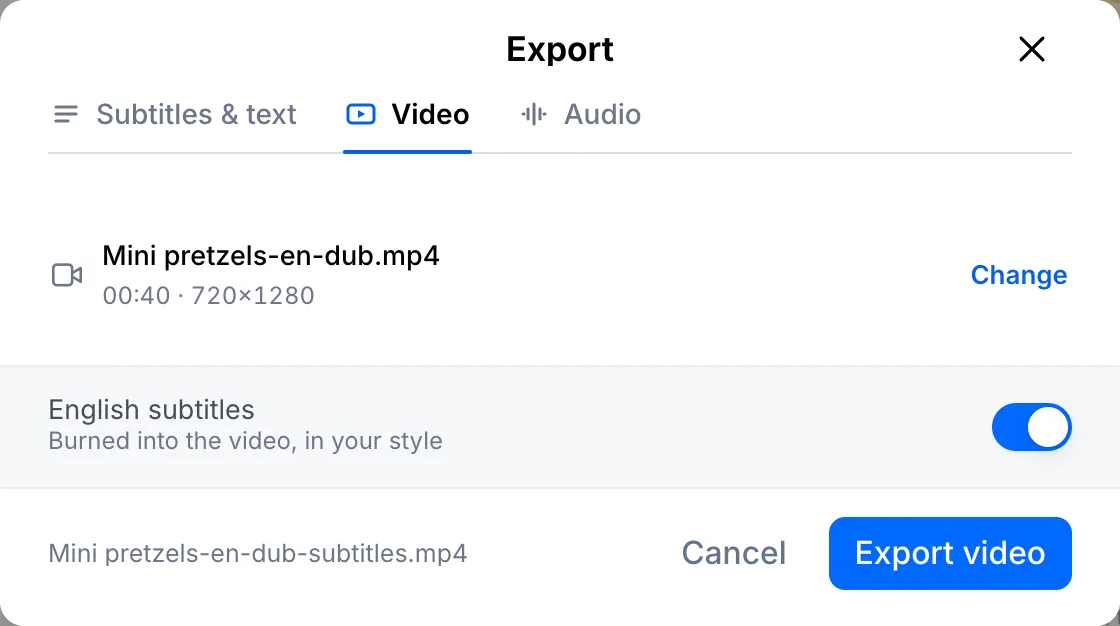
Export the vertical MP4
Click Export, open the Video tab and click Export video. You get a vertical MP4 with the captions burned in, ready to post.
Your file, your transcript
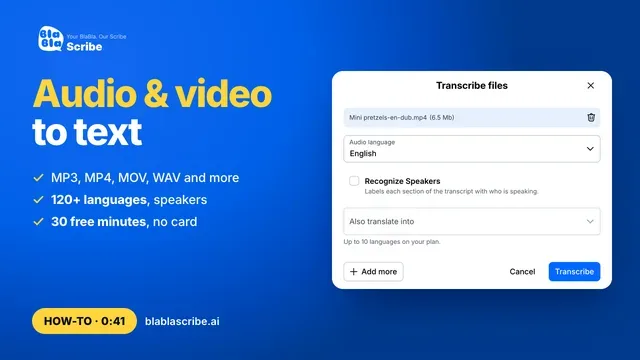
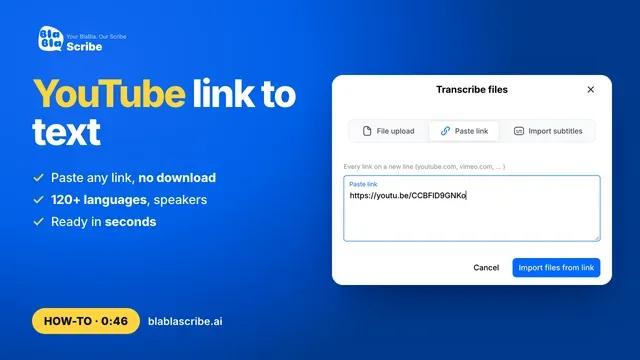
Paste a link or upload a file. Every word comes back with a timestamp, ready to edit, translate or export.
- 30 free minutes
- No card needed
- Never used for AI training
Questions
Does the safe zone work for YouTube Shorts too?
Yes. The shaded area covers the buttons and text that Reels, TikTok and Shorts place over a vertical video.
Can I use the same captions in another language?
Yes. Translate the file, then choose that language on the Video tab when you export.
Next steps
 All tutorials →