How to transcribe an audio or video file
Upload the file, check the language and click Transcribe. A short clip is ready in seconds, and longer recordings take a few minutes. You get every word with a timestamp, right next to your audio or video.
Step by step
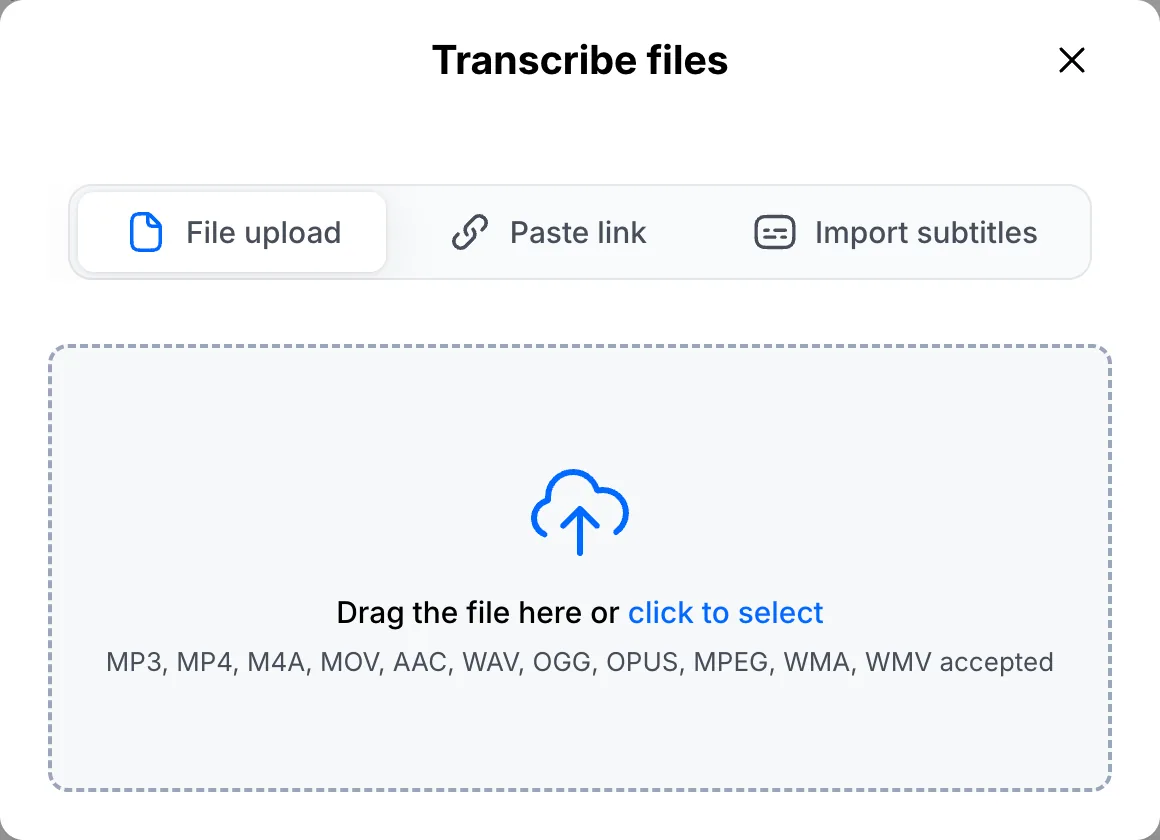
Add your file
Click Transcribe files in the top right corner, then drag the file into the window or click to pick it from your computer. MP3, MP4, M4A, MOV, WAV and the other common audio and video formats all work.
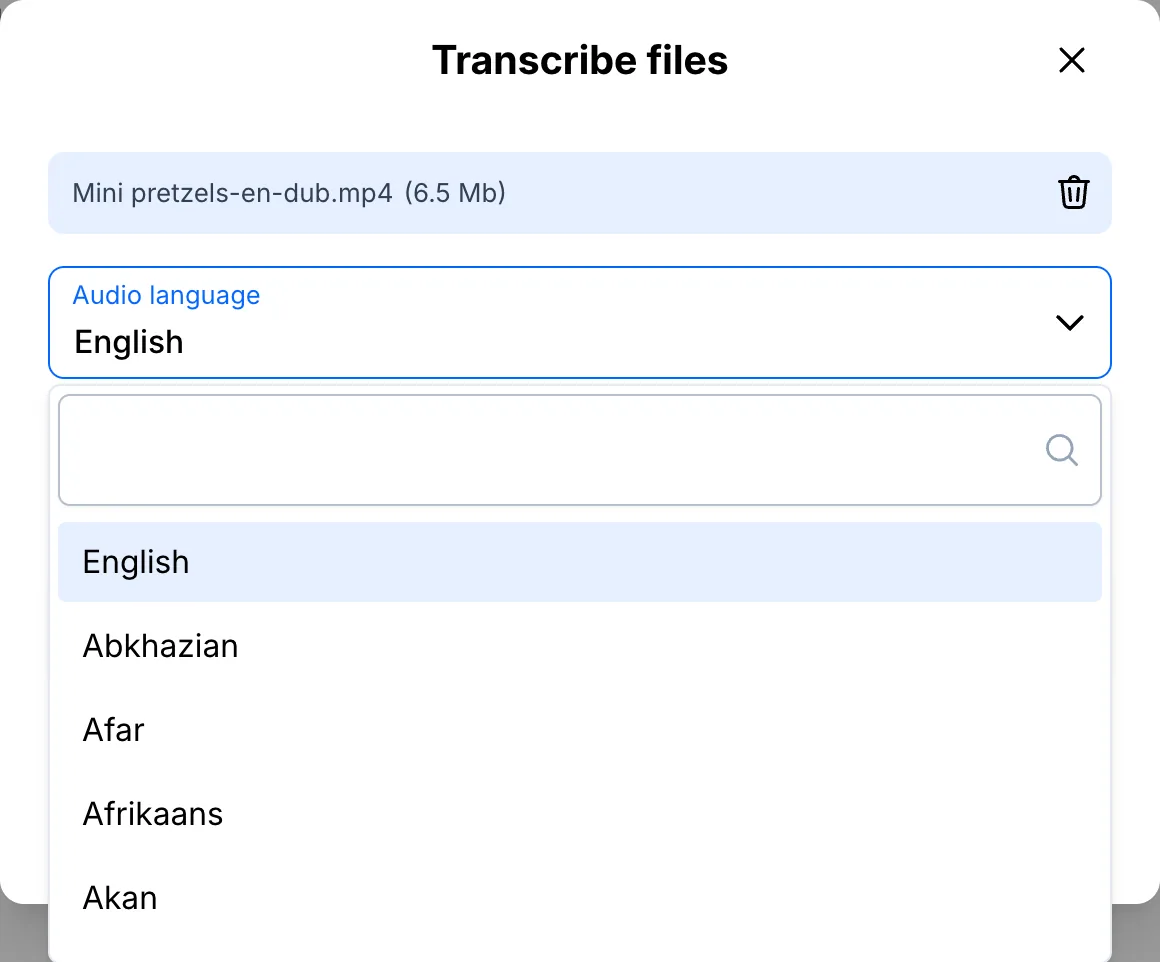
Check the language
While the file is being prepared, make sure Audio language is right. There are more than 120 to choose from, so start typing to find yours quickly.
Turn on speakers if needed and start
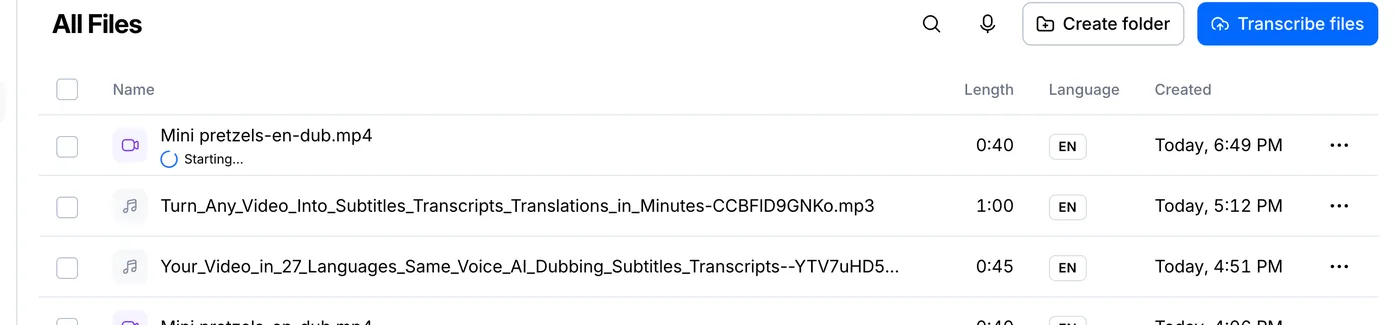
If more than one person talks, tick Recognize Speakers so each line is labelled with who said it. Then click Transcribe. The file shows up in your list straight away, along with its progress.
Open the transcript
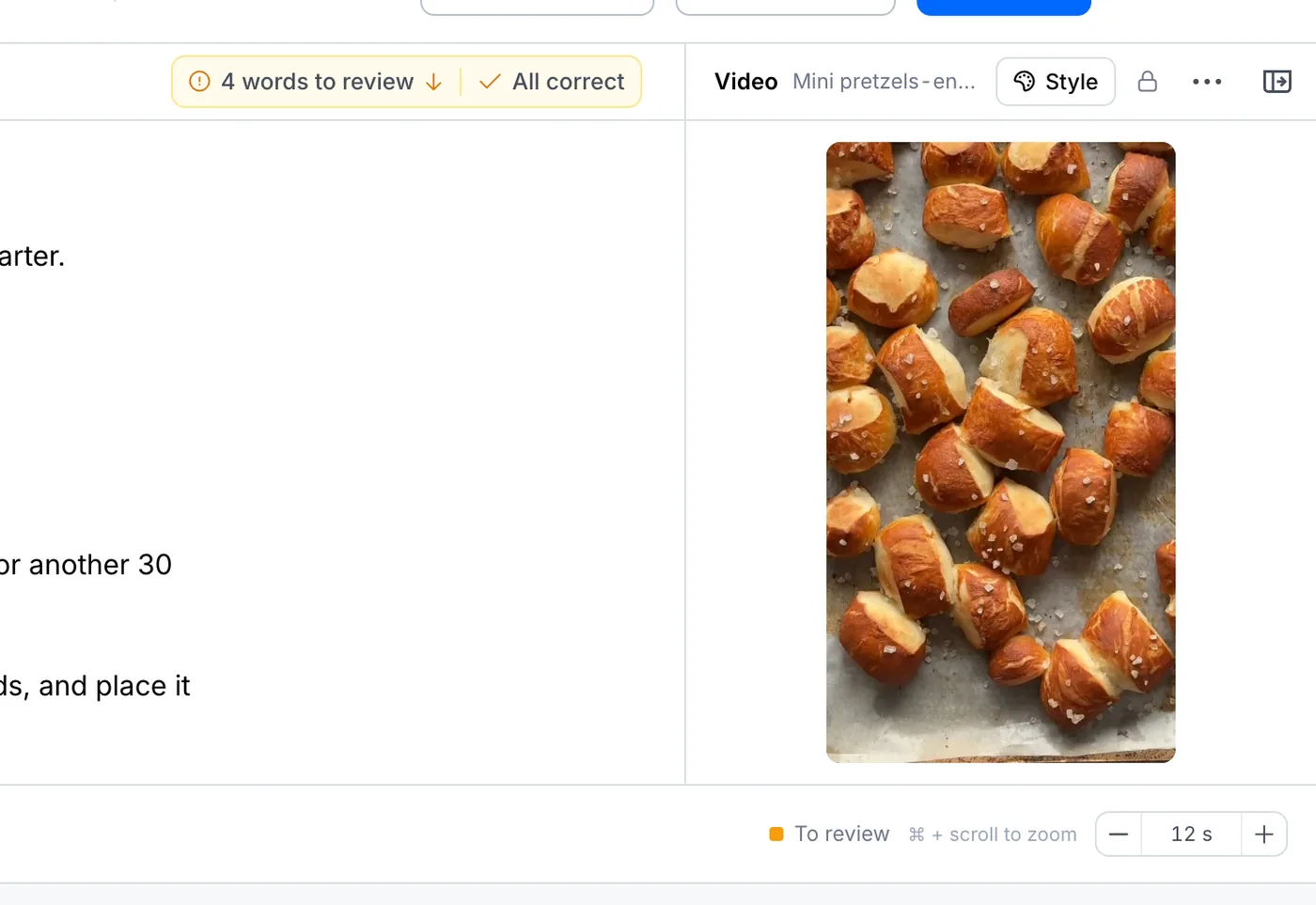
Click the file when it's done. The full transcript sits next to your video, with a timestamp on every line, and you can play any line by clicking it.
Your file, your transcript
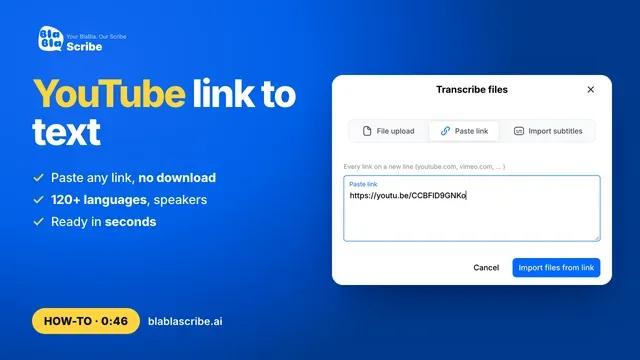
Paste a link or upload a file. Every word comes back with a timestamp, ready to edit, translate or export.
- 30 free minutes
- No card needed
- Never used for AI training
Questions
How long does it take to transcribe a one-hour recording?
Usually a few minutes. Short clips are ready in seconds. You can close the tab, because the file keeps processing and appears in your list when it's done.
Which file formats can I upload?
MP3, MP4, M4A, MOV, WAV and most other common audio and video formats.
Next steps
 All tutorials →