How to export subtitles (SRT, VTT) or a transcript (DOCX, PDF)
Click Export, pick a format and download. Subtitle formats can be split into short captions, and documents can keep or drop the timecodes. A preview shows exactly what you'll get.
Step by step
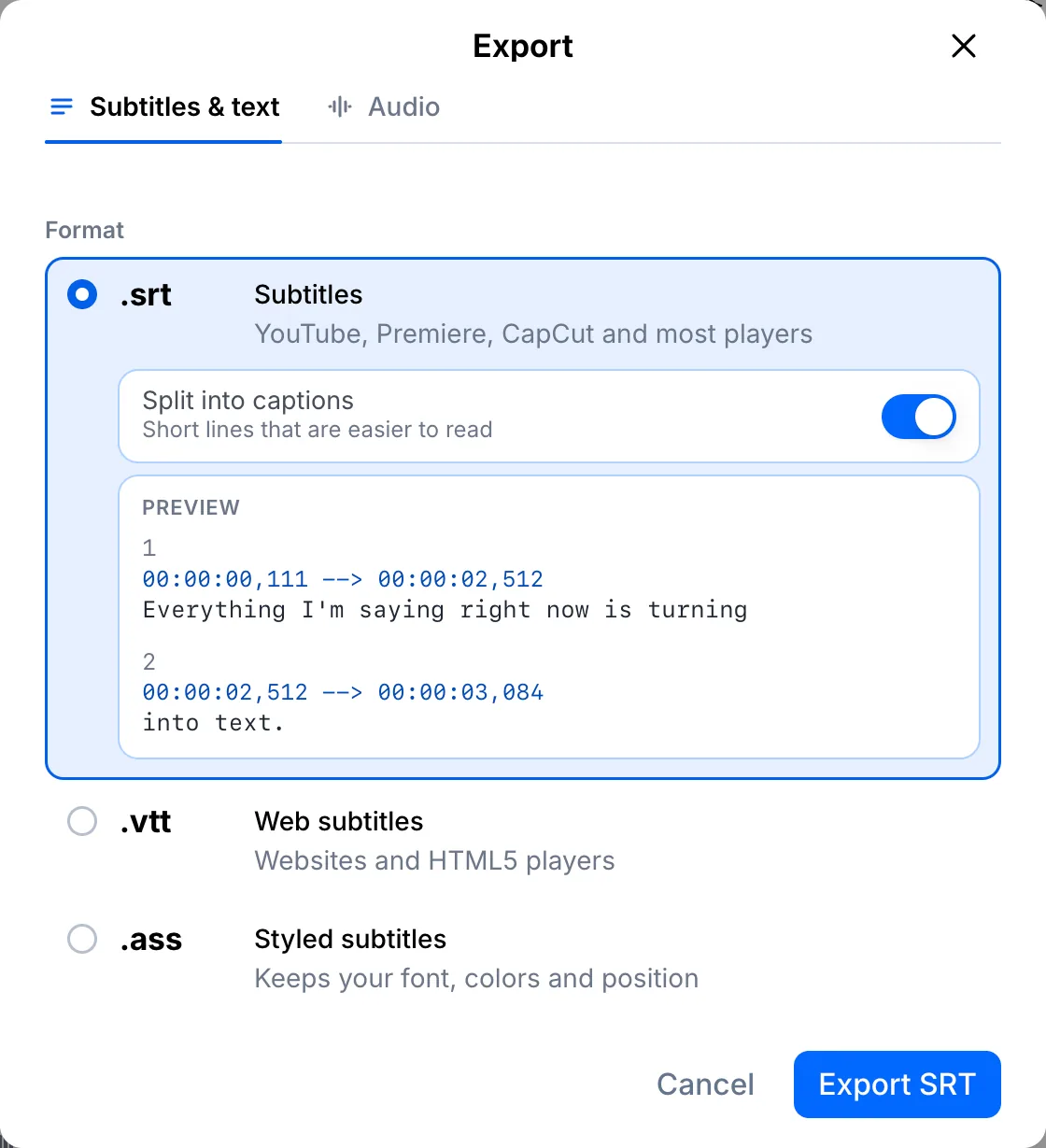
Open Export and pick a subtitle format
Click Export. SRT works in YouTube, Premiere, CapCut and most players, VTT is made for websites, and ASS keeps your caption style. Leave Split into captions on to keep lines short and easy to read.
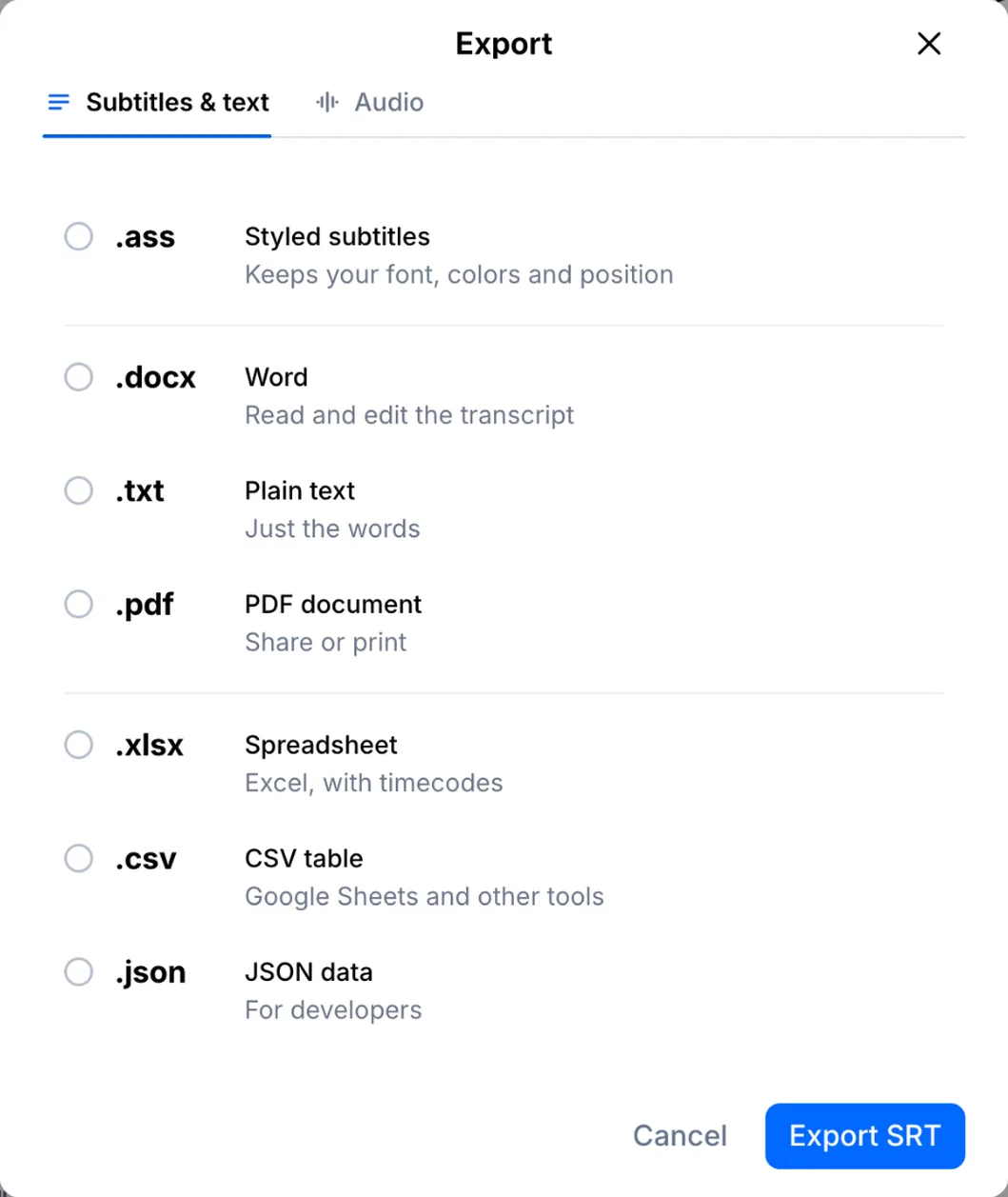
Or choose a document
Need text rather than subtitles? Pick Word (DOCX), TXT or PDF. Excel, CSV and JSON are there too.
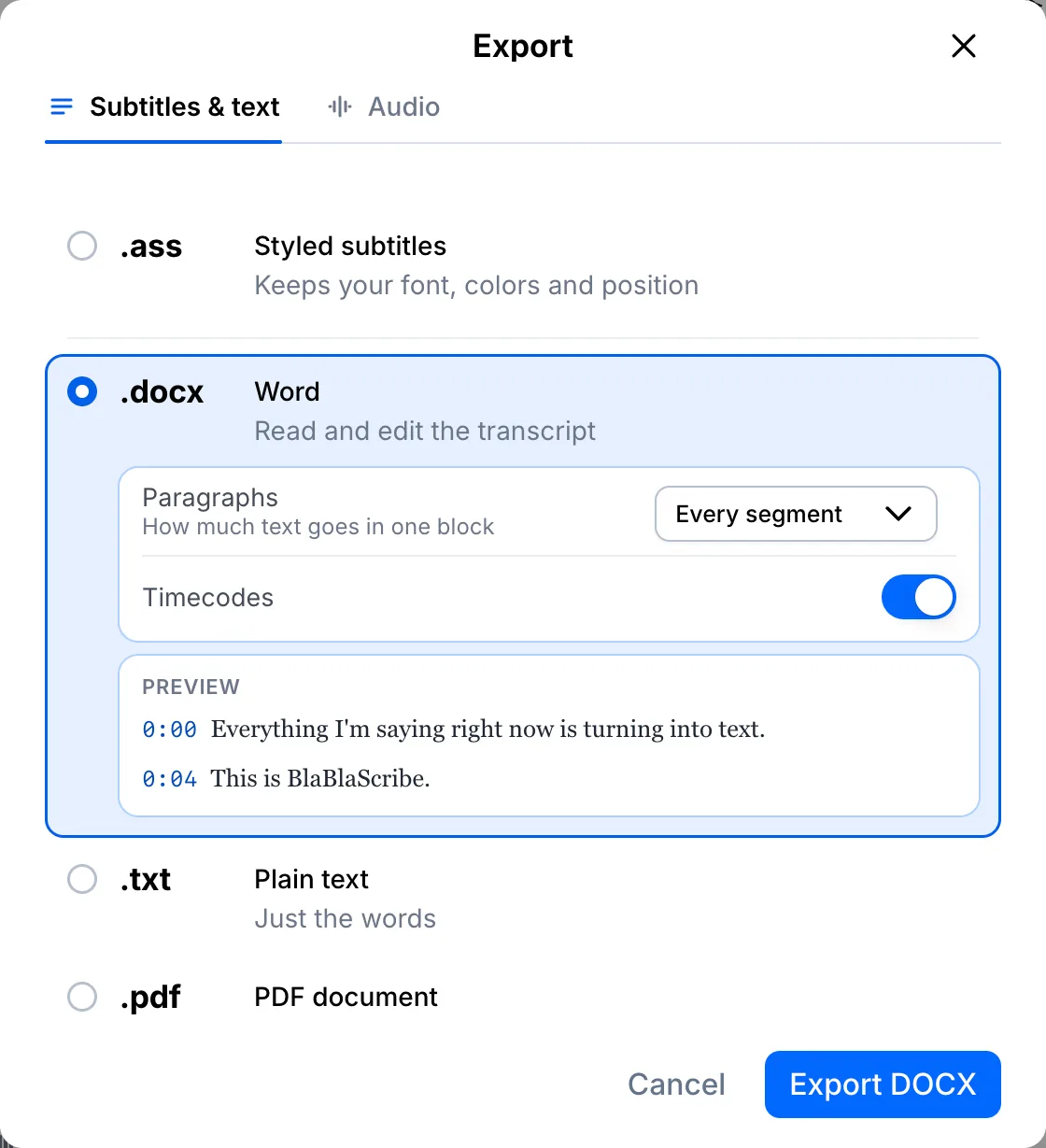
Set paragraphs and timecodes, then export
For documents, choose how the text is grouped into paragraphs and whether to keep the timecodes. Click Export and the file downloads right away.
Your file, your transcript
Paste a link or upload a file. Every word comes back with a timestamp, ready to edit, translate or export.
- 30 free minutes
- No card needed
- Never used for AI training
Questions
Which format should I use for YouTube?
SRT. Upload it in YouTube Studio under Subtitles, and the timing matches your video.
Can I export translated subtitles?
Yes. If the file has a translation, choose the language in the Export window before you pick the format.
Next steps
 All tutorials →