How to get an AI summary of a recording
Open AI tools and choose Write summary. In a few seconds you get the main points of the recording, based on what was actually said.
Step by step
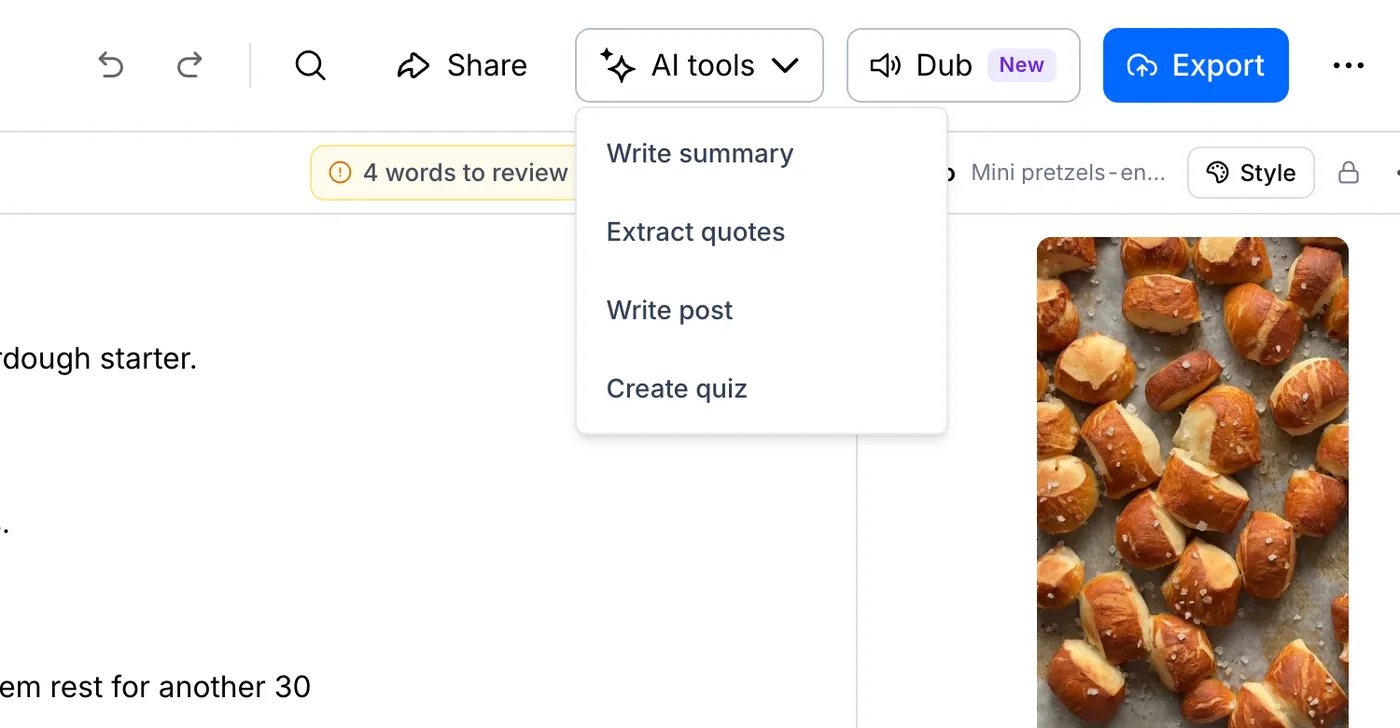
Open AI tools
Open your file, click AI tools and choose Write summary.
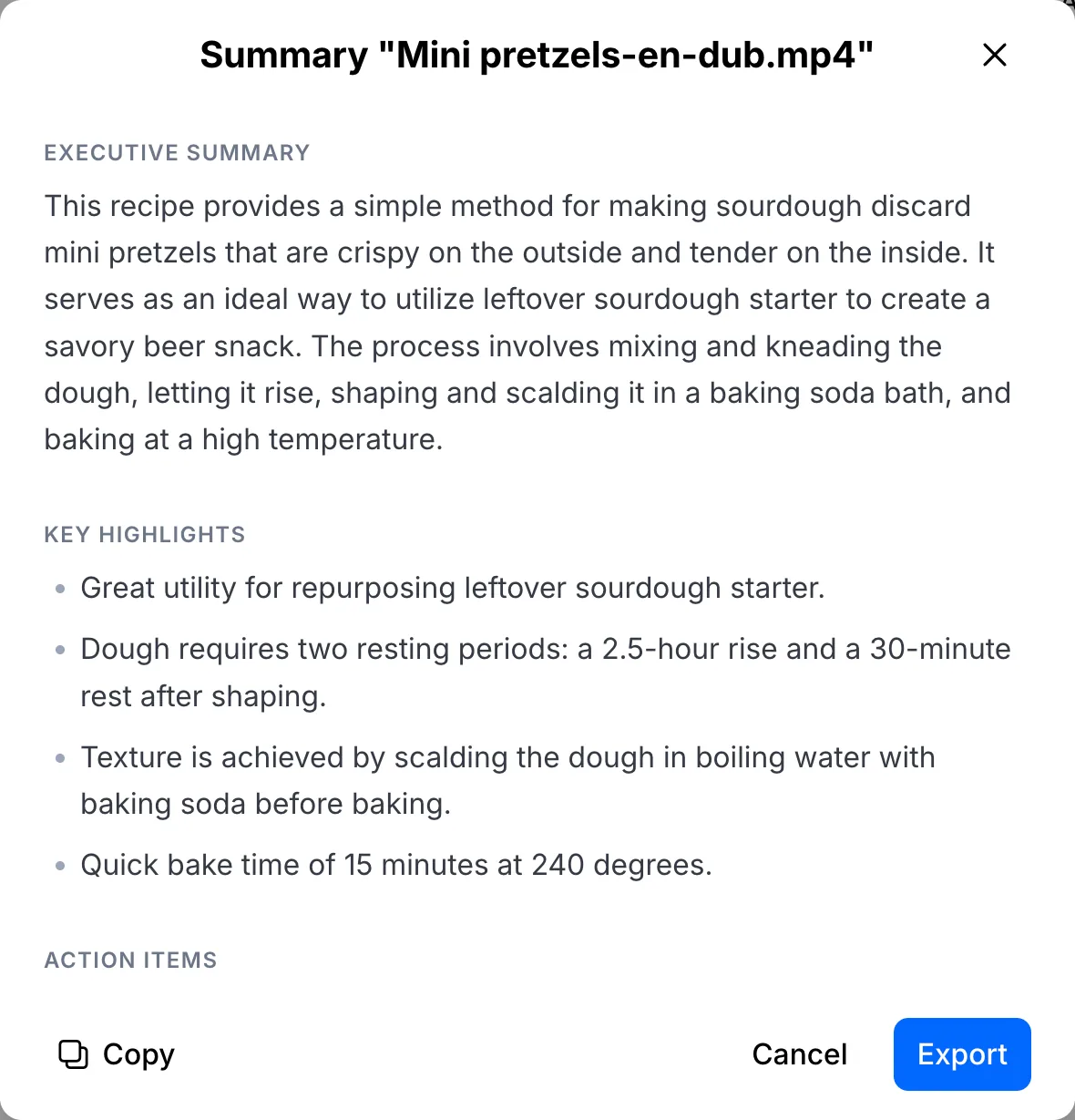
Read the summary
You get a short executive summary and the key highlights.
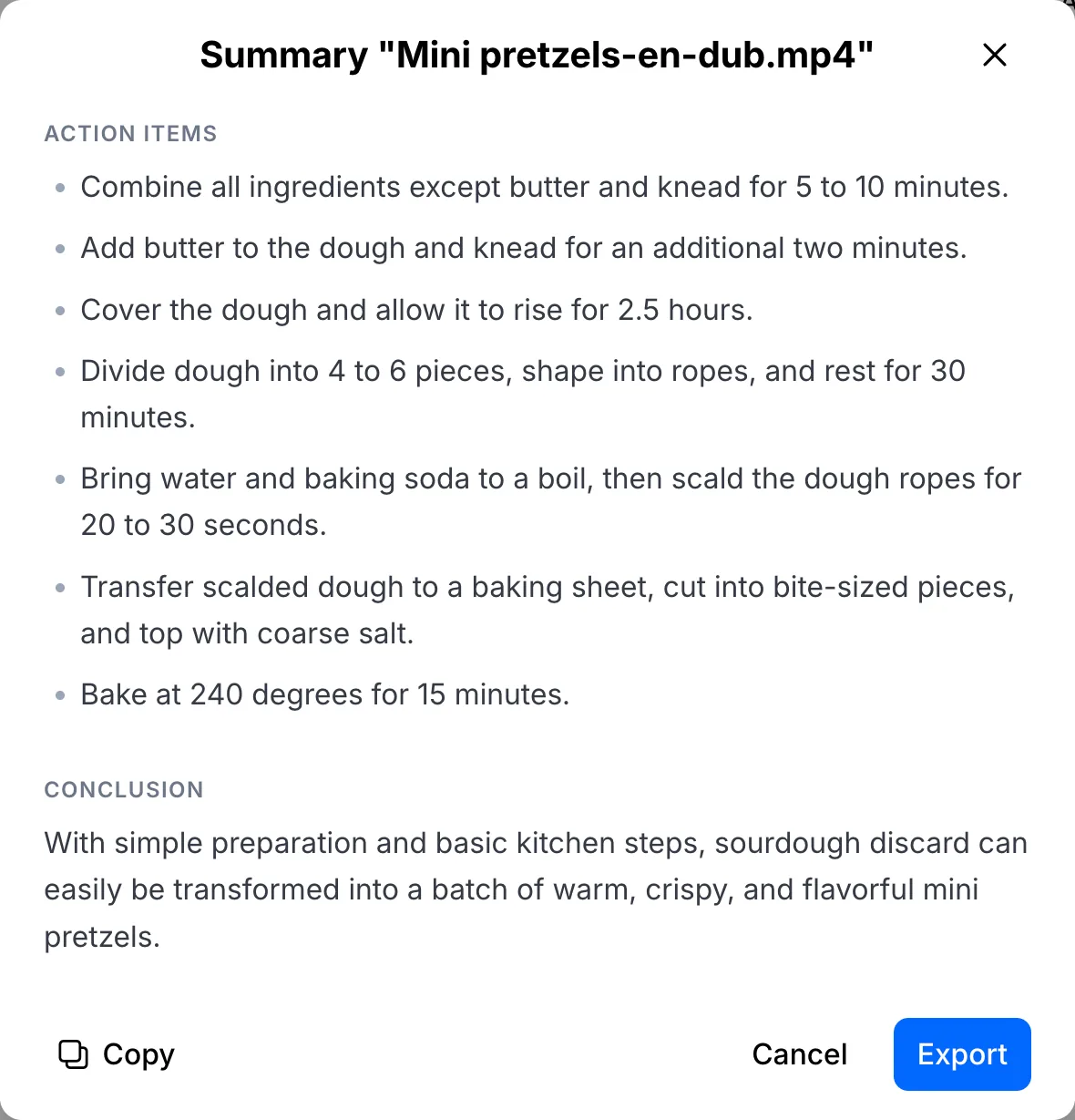
Copy or export it
Scroll down for action items and a conclusion. Copy the text, or export it as a file.
Your file, your transcript
Paste a link or upload a file. Every word comes back with a timestamp, ready to edit, translate or export.
- 30 free minutes
- No card needed
- Never used for AI training
Questions
What kinds of recordings work best?
Meetings, lectures, interviews and podcasts. The summary follows what was said, so cleaner audio gives a better result.
What language is the summary in?
The same language as the recording. A Spanish interview gets a Spanish summary, headings included.
Next steps
 All tutorials →