How to add styled captions and download the video as MP4
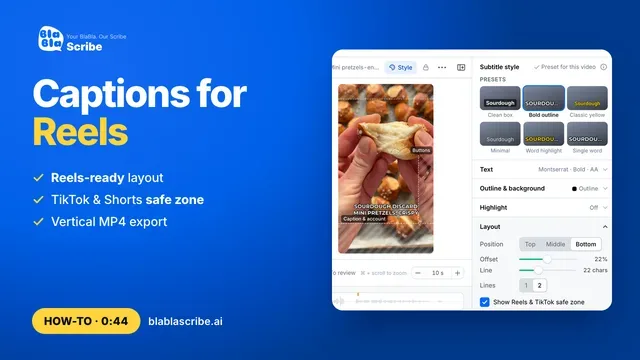
Open the Style panel, pick a look and export the video. The captions are burned into the MP4 in your style, and it's put together right in your browser.
Step by step
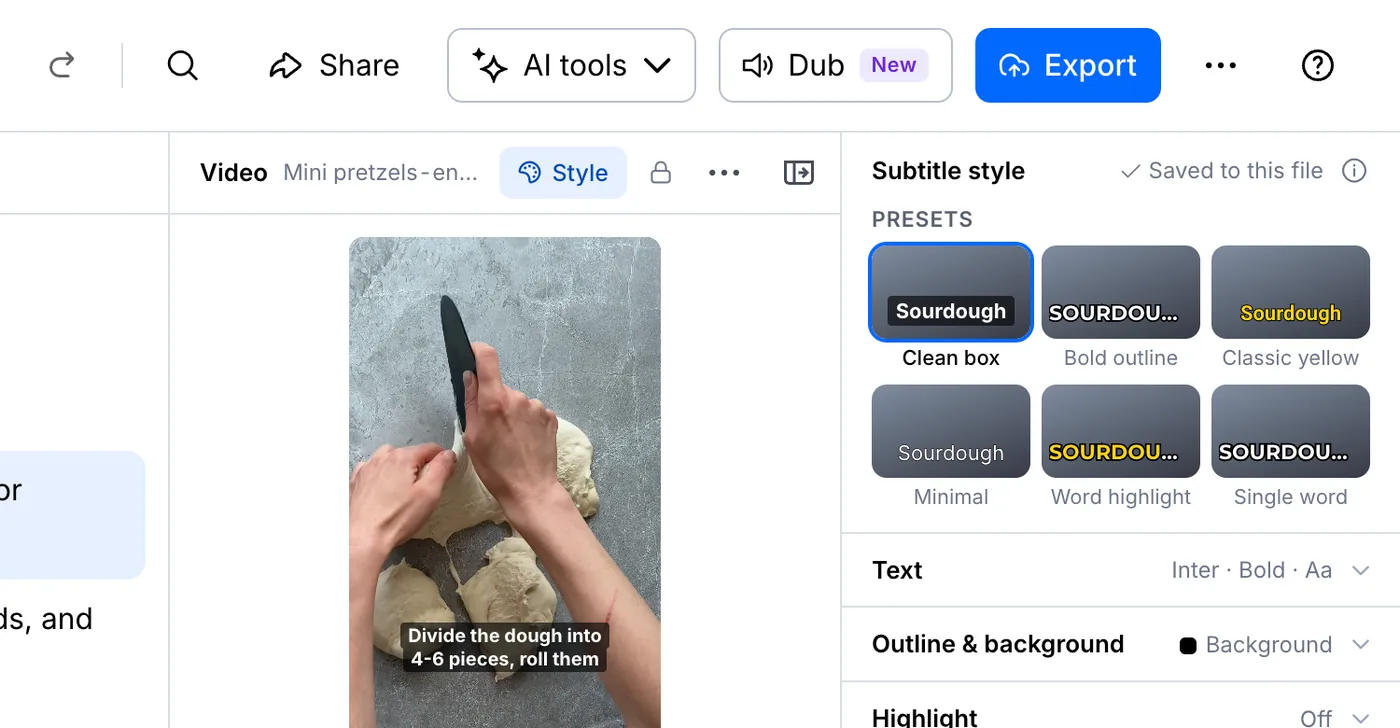
Open Style and pick a preset
Open your file and click Style above the video. Clean box puts the words on a dark background, and Bold outline makes them big and easy to read.
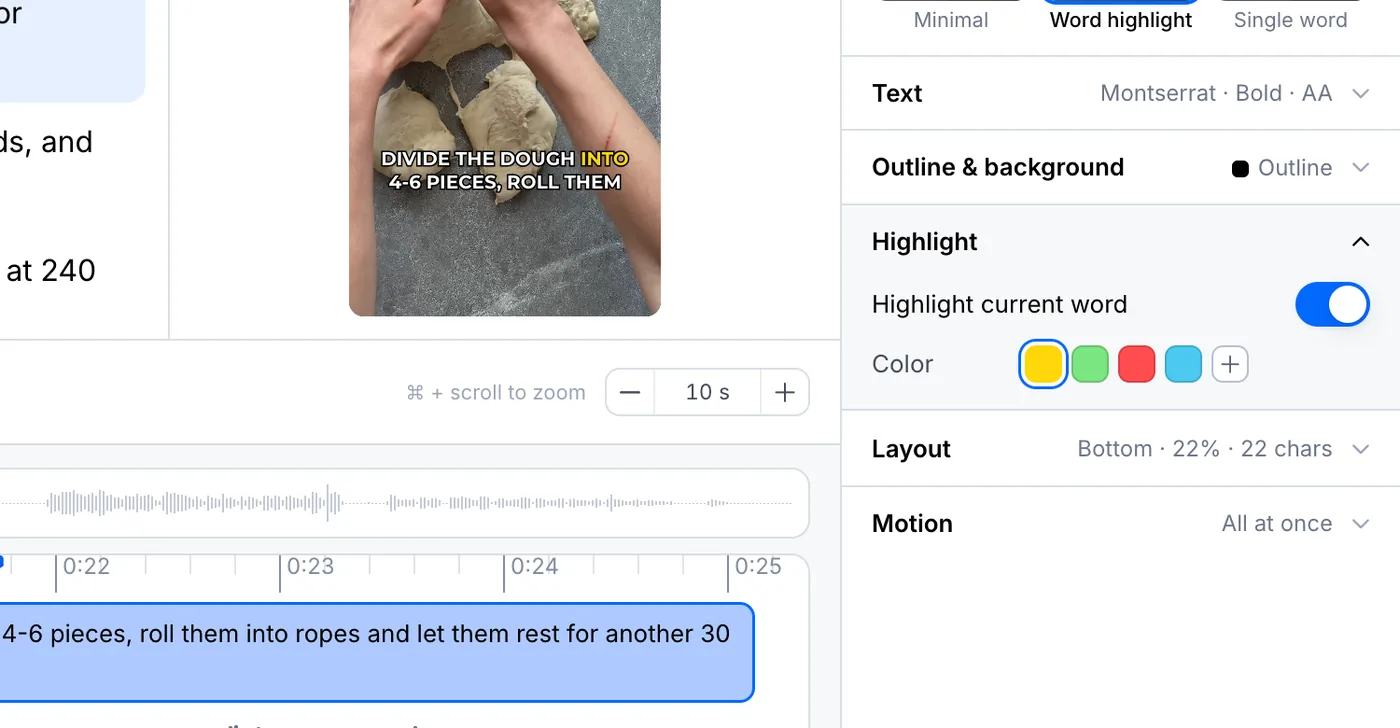
Highlight the spoken word
Word highlight colours each word as it's said. Change the colour right in the panel.
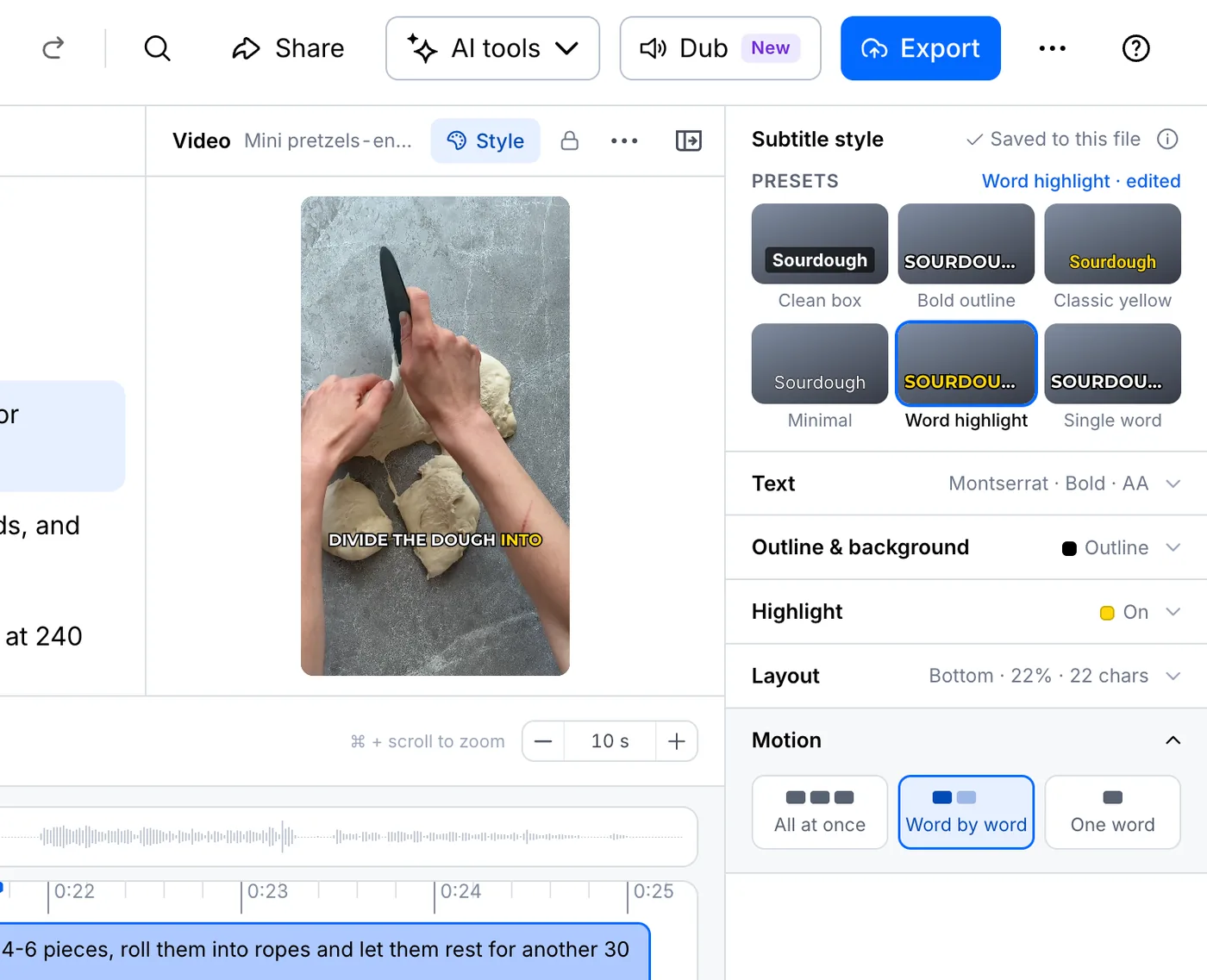
Choose how the words appear
Under Motion, show the whole line at once, reveal it word by word, or show one word at a time. Your style is saved to the file automatically.
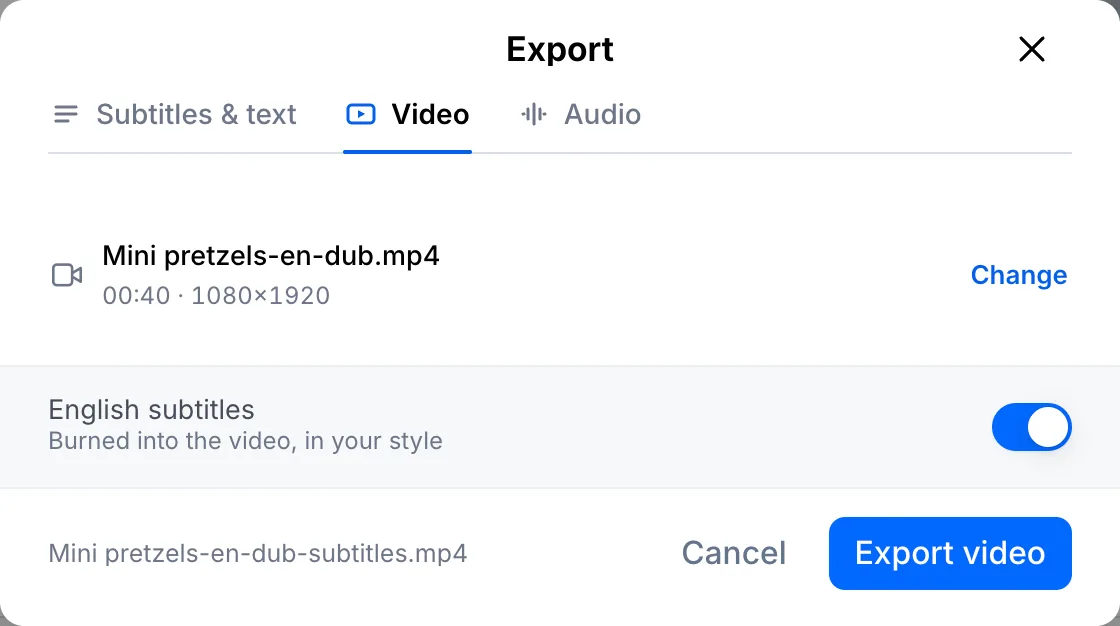
Export the video
Click Export, open the Video tab and keep the subtitles on. Click Export video and the MP4 downloads to your computer, with a ready-made caption for your post.
Your file, your transcript
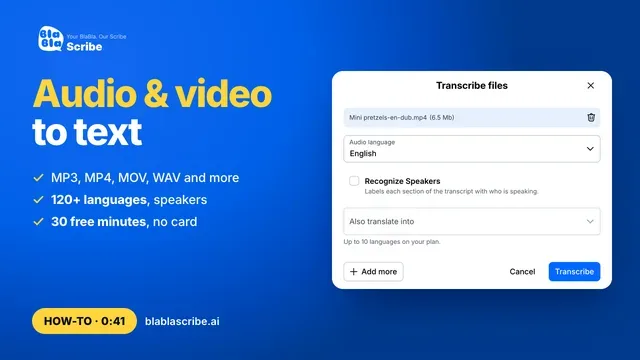
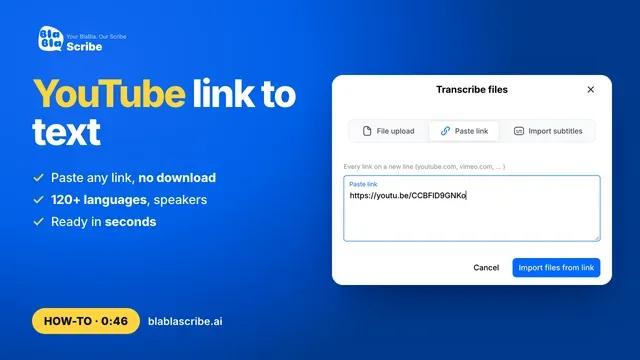
Paste a link or upload a file. Every word comes back with a timestamp, ready to edit, translate or export.
- 30 free minutes
- No card needed
- Never used for AI training
Questions
Do I need to install anything?
No. The video is rendered in your browser, so nothing is uploaded again and there's nothing to install.
Can I burn in translated subtitles?
Yes. If the file is translated or dubbed, pick the language on the Video tab before exporting.
Next steps
 All tutorials →