Dub YouTube Videos With AI: Audio Tracks You Can Edit
Paste a YouTube link or upload the video, pick a language and a voice per speaker, and BlaBlaScribe dubs it with the music kept. Unlike YouTube’s automatic dubbing, you fix every translated line before it is voiced and can keep your own voice with a clone. Then add the track in YouTube Studio as that language’s dub.
YouTube links or the original MP4, MOV, MKV up to 8 GB · 27 languages · free 15-second preview
An audio track for every language
YouTube Studio · Languages · Dub
Click or drag & drop to upload your audio or videoTap to upload your audio or video
MP3, MP4, M4A, MOV, MKV, WEBM, AVI, WAV, FLAC, AAC, OGG, OPUS, WMA, WMV
No credit card required · Stored in the EU · Never used for AI training
Why Creators Dub Their Own Videos
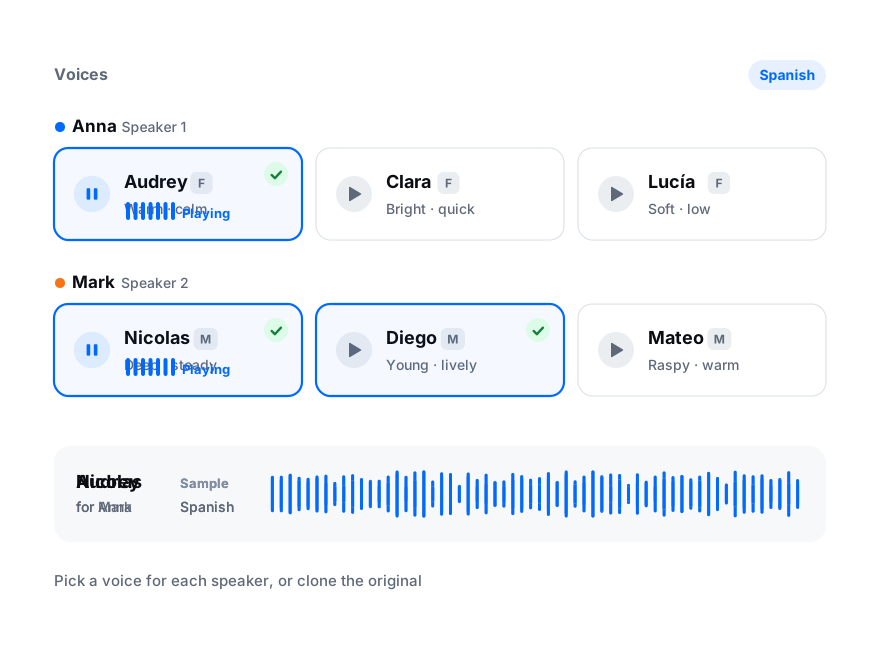
Upload Spanish, Portuguese and German tracks to the same video. Viewers hear their language by default, and views, comments and analytics stay on one video instead of three channels.
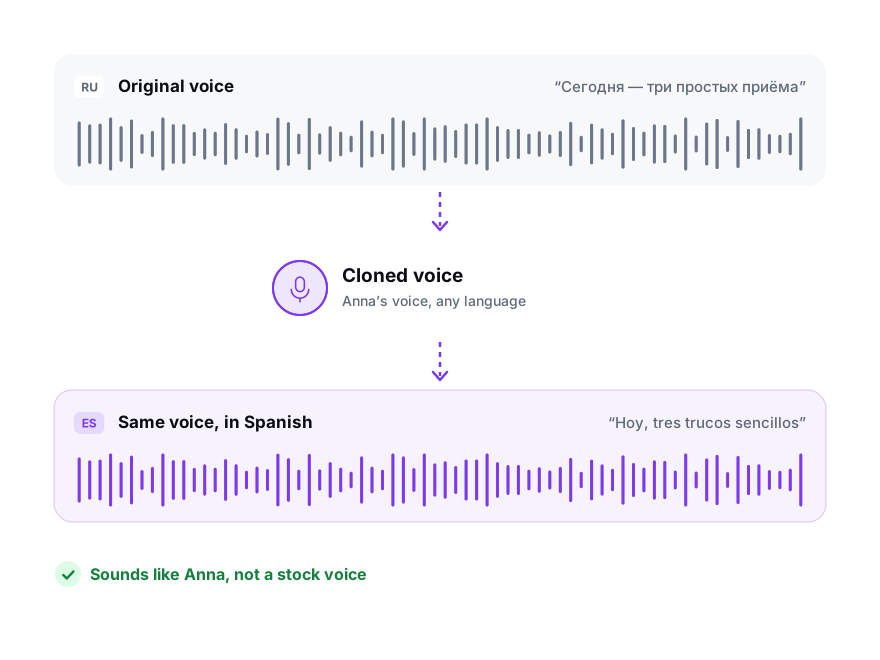
Clone your voice from at least 20 seconds of your own speech in the video, and your audience hears you, not a stock narrator. You confirm consent each time.
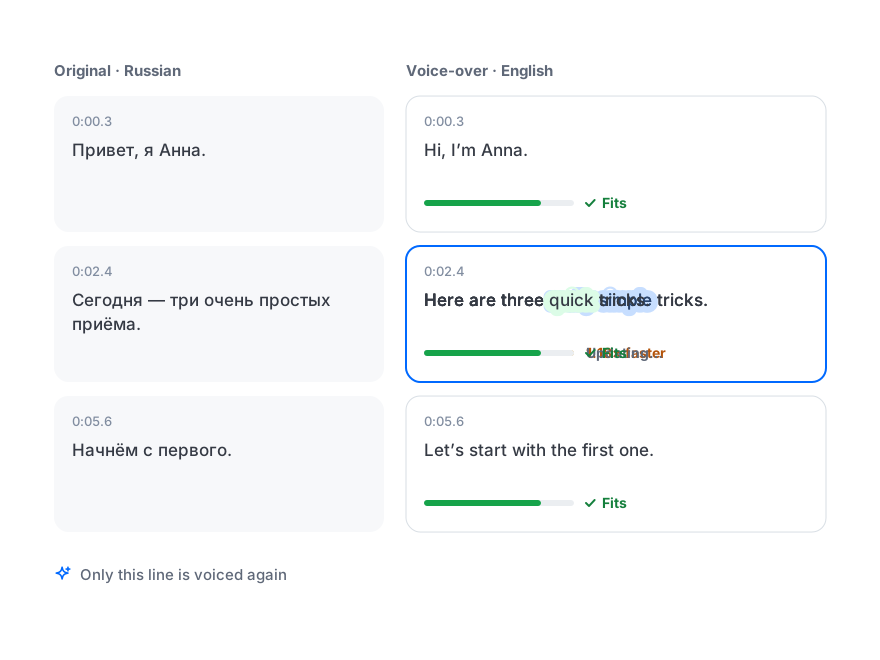
Read the translation line by line and fix product names, slang and jargon before anything is voiced. Change one line later, and only that line is voiced again.
Your Own Dub vs YouTube Automatic Dubbing
YouTube can dub eligible videos for free, but you only get to approve or delete the result. A track you upload yourself is one you have checked.
| YouTube automatic dubbing | Dubbed in BlaBlaScribe | |
|---|---|---|
| Languages | From English into 20 languages; from most other languages into English only | From any of 120+ spoken languages into 27, for example Spanish into German or Japanese into Polish |
| Change the translation | Not possible: fix the video’s language setting and wait for a new dub | Every line, before and after it is voiced |
| Voice | A generated voice; some languages copy the original pitch and intonation | A library voice for each speaker, or a clone of the speaker’s own voice |
| Videos it skips | Over 120 minutes, mostly music, very fast speech or copyrighted content | Fast lines are fitted one by one; the ones that still run long are flagged for you |
| Publishing | Goes live automatically unless you turn on manual review | You upload the track when you are happy with it |
| Outside YouTube | Plays on YouTube only | Download the dubbed MP4 or audio for TikTok, Instagram or your own site |
| Price | Free on eligible channels | $1.00–1.50 per minute per language; 15-second preview free |
Uploading your own audio track needs Advanced features on the channel, and if YouTube already made an automatic dub in that language, you delete it first.
YouTube Help, checked 9 November 2026: Use automatic dubbing · Add multi-language features
What You Get for Your YouTube Channel
Everything starts from the transcript of your video, so the dub follows what was actually said.
- Source
- A YouTube link, or the original MP4, MOV or MKV up to 8 GB
- Languages
- 27, including Spanish, Portuguese, German, French, Italian, Japanese, Korean, Polish, Turkish, Indonesian and Russian
- Voices
- One per speaker from the voice library, or a clone made from at least 20 seconds of that speaker
- Background
- Original speech removed, music and sound effects kept under the new voice
- Track for YouTube Studio
- The full-length dubbed audio as MP3, M4A or WAV; choose Voice, music & sounds
- Video for other platforms
- An MP4 rendered in your browser from the original file, with subtitles burned in if you like
- Captions
- The same translation as an SRT or VTT file to add as subtitles in that language
- Price
- $15 for 10 minutes down to $1 a minute in the 100-minute pack; translation included, minutes never expire
Before You Upload a Dub to YouTube
A few things decide whether the track goes in cleanly and whether viewers stay with it.
Auto dub
Delete YouTube’s auto dub for that language
YouTube won’t take your track for a language it has already dubbed automatically. Delete the auto dub on the video’s Languages page, or untick Allow automatic dubbing for the channel.
Length
Upload the track at full length
YouTube expects an audio file roughly as long as the video. Export the whole track, silences included, and don’t trim the start or the end.
Names
Fix names in the transcript first
Correct your channel name, guests and product names in the transcript before dubbing, so the translation and the voice get them right everywhere.
Depth
Start with one or two languages
YouTube’s own advice is to dub much of your catalogue in a couple of languages rather than a few videos in many. Translate titles and descriptions too: they are what viewers search.
How to Dub a YouTube Video
From the link to a dubbed track in YouTube Studio in four steps.
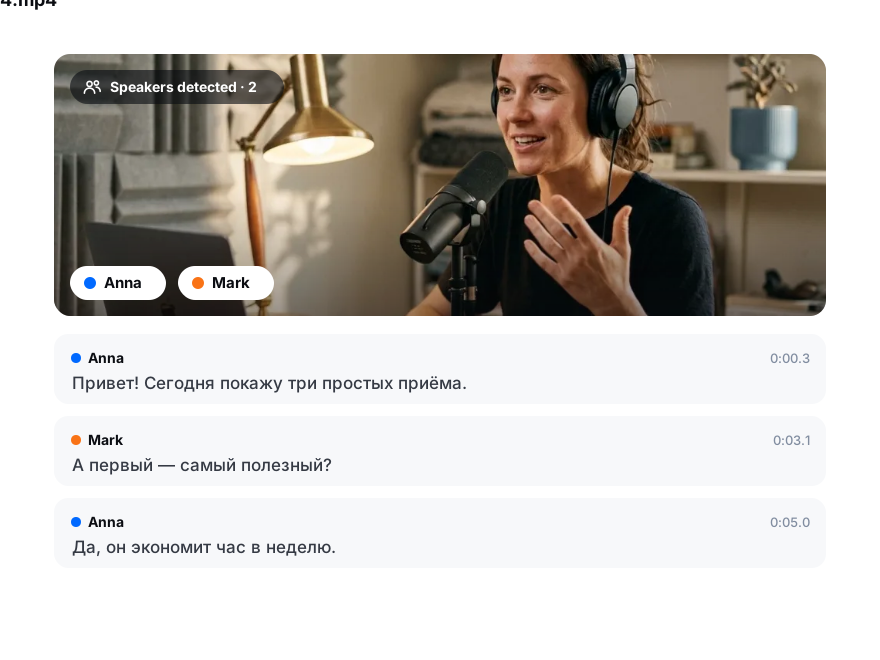
Paste the link to your video or upload the original file. The speech is transcribed and the speakers are told apart.
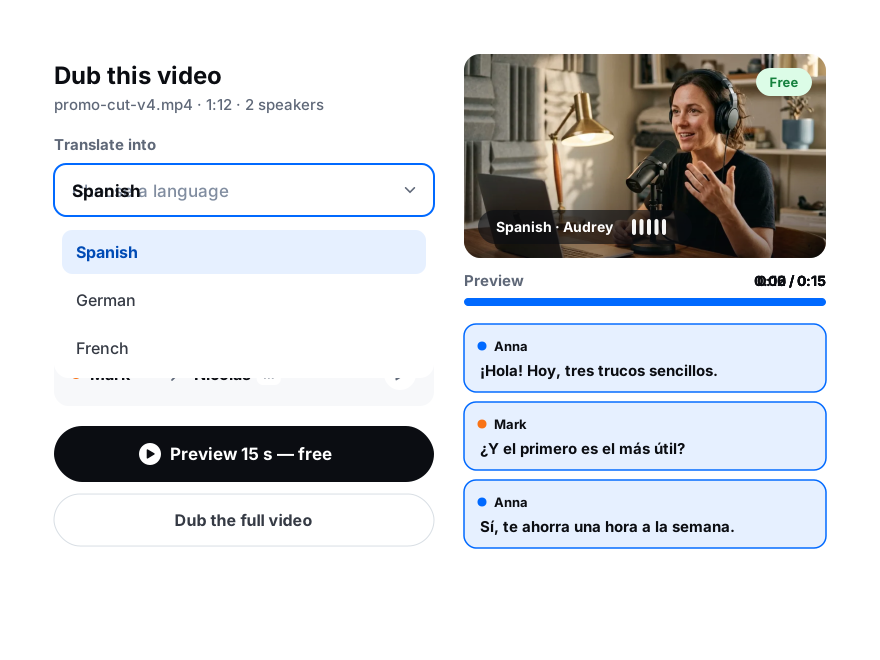
Pick a language and a voice for each speaker, or clone your own, then play a free 15-second preview of your video.
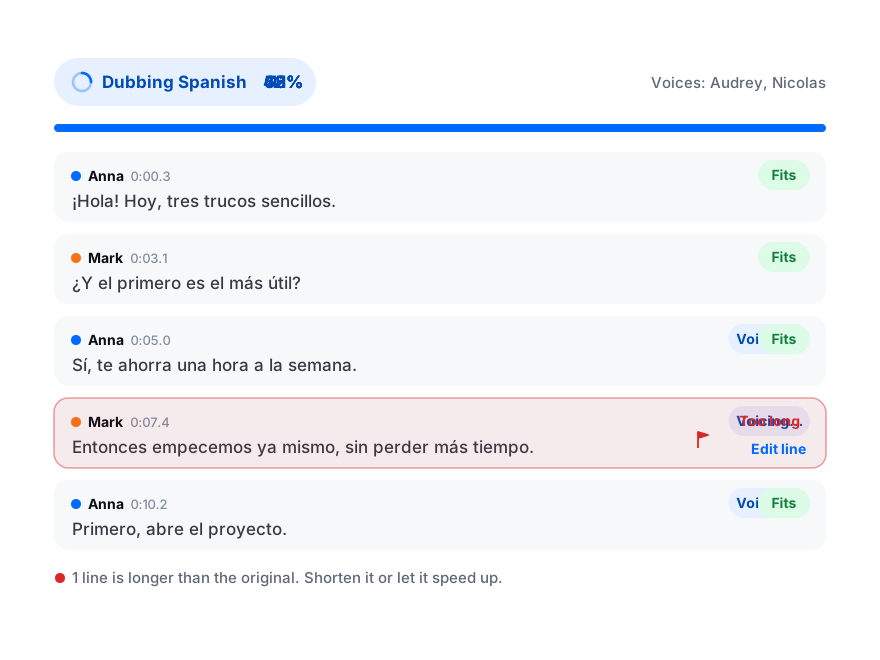
Each line is written to fit its slot, sped up by at most 1.2× and allowed up to 1.5 seconds of the pause after it. Lines that still run long are flagged: Shorten to fit rewrites them.
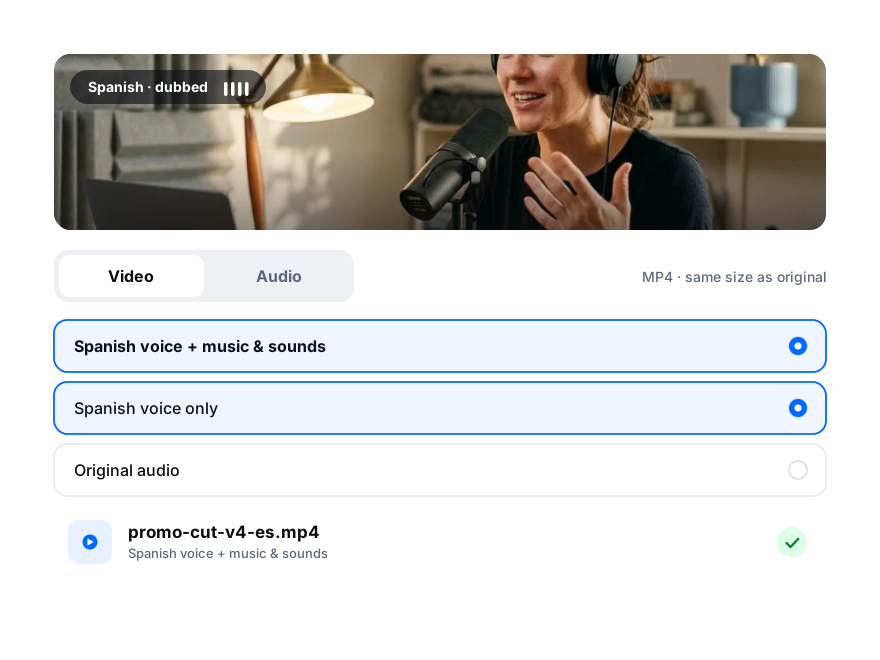
Export the audio with Voice, music & sounds, then in YouTube Studio open Languages, add the language and upload the file next to Dub.