Audio to Word: Your Recording as a DOCX
Upload an audio file, let it transcribe, then export DOCX. You get a Word document with every paragraph in order, the speaker’s name in front of it and, if you want, the time it was said, ready to edit and share.
MP3, M4A, WAV, OGG, FLAC, WMA and video · files up to 8 GB · DOCX, PDF and TXT export
Names and times, set once for the whole file
Click or drag & drop to upload your audio or videoTap to upload your audio or video
MP3, MP4, M4A, MOV, MKV, WEBM, AVI, WAV, FLAC, AAC, OGG, OPUS, WMA, WMV
No credit card required · Stored in the EU · Never used for AI training
Why People Want Audio in Word


A recorded interview becomes a Word file you can trim into a Q&A, with each answer under the interviewee’s name and a time to go back to.
A meeting recording turns into a document colleagues already know how to comment on, track changes in and attach to an email.
Notes dictated on a phone or a recorder come back as paragraphs in Word, so the first draft is already typed.
Audio to Word Here vs Transcribe in Microsoft Word
Word has its own Transcribe button. This is how the two compare, from Microsoft’s support page and our export settings, checked in November 2026.
- Where it works
- Any browser; Word’s Transcribe runs in Word for the web and Word for Microsoft 365 on Windows
- Monthly limit
- Your plan’s minutes; Word allows 300 minutes of uploaded audio a month on Microsoft 365
- File types
- MP3, M4A, WAV, OGG, FLAC, WMA and video files; Word takes .wav, .mp4, .m4a and .mp3
- Languages
- 120+ spoken languages; Word lists 80+ locales
- In the document
- Speaker names on each paragraph or only when the speaker changes, timestamps like (1:14 - 1:19) or none
- Other formats
- The same transcript as PDF, TXT, SRT, VTT, CSV or XLSX; Word inserts the text into the open document
- Plans
- DOCX and PDF from the Creator plan; the 30 free minutes export TXT and SRT, which Word opens too
Set Up the Word File Before You Export
Three export choices change how the document reads.
Speakers
Rename “Speaker 1” first
Give each voice its real name in the editor once; the DOCX then shows names instead of numbers on every paragraph.
Timestamps
Keep them for review, drop them for reading
A time in front of each paragraph helps whoever checks quotes. For a document people will just read, export without them.
Paragraphs
Group lines into longer blocks
Choose paragraphs every 15–30 seconds instead of one line per segment, and the Word file reads like text, not a script.
How to Convert Audio to Word
From recording to finished document in three steps.
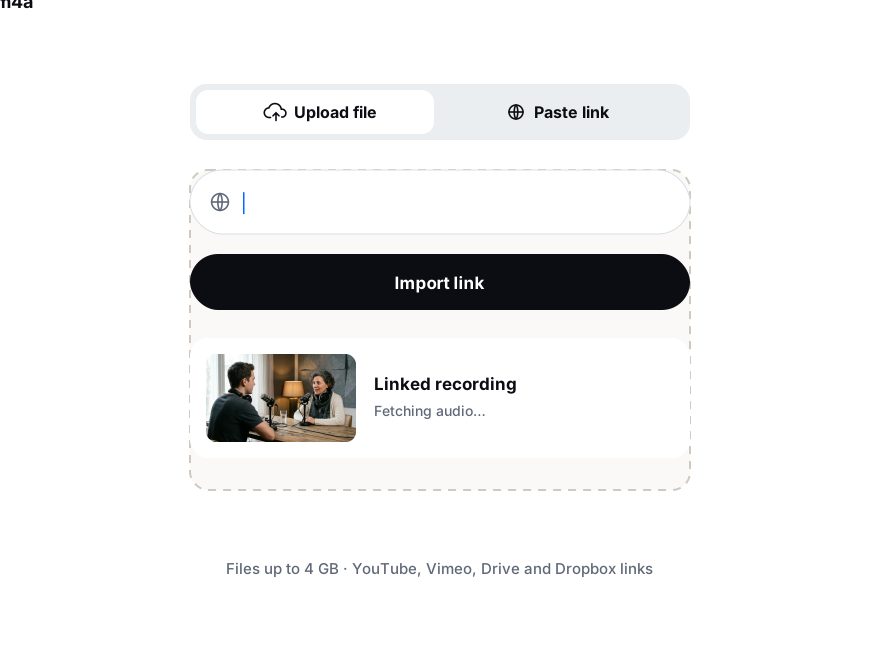
Add an MP3, M4A, WAV or any audio up to 8 GB, or paste a link to the recording.
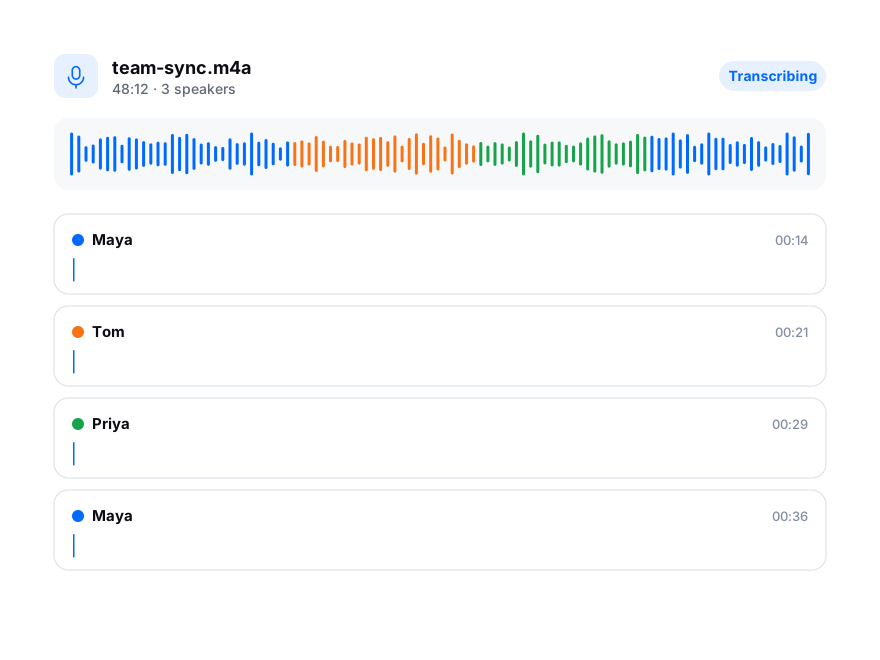
Rename speakers and fix any word while listening; the editor plays the line you click.
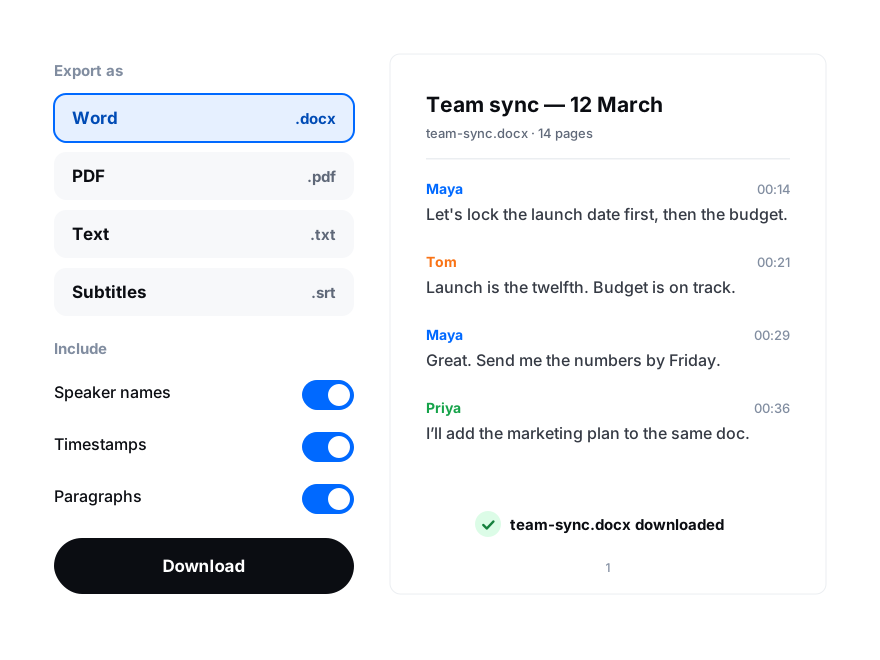
Pick DOCX, choose speaker names and timestamps, and open the file in Word, Google Docs or Pages.