How to translate subtitles into another language
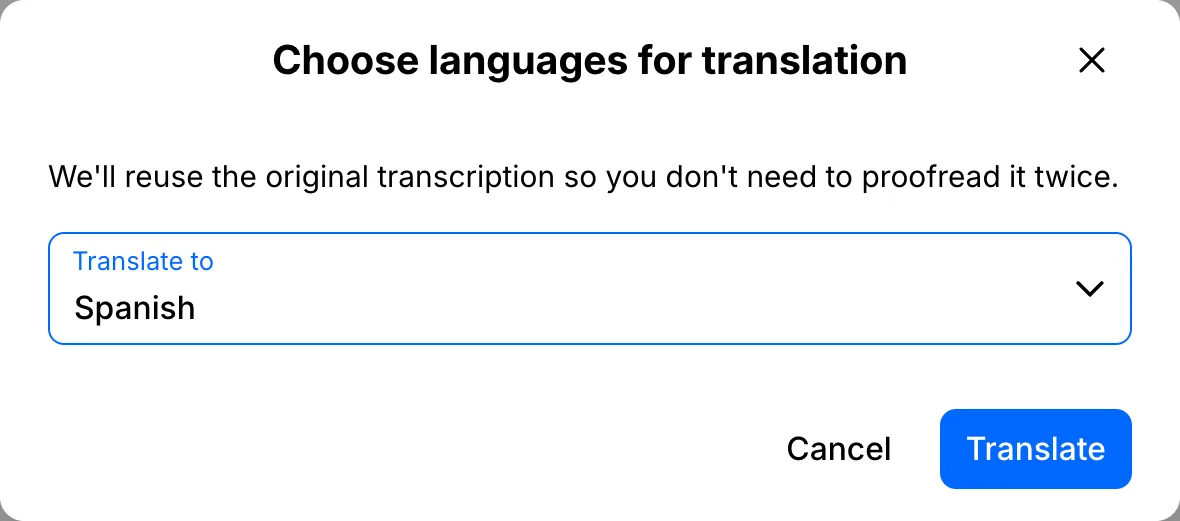
Click Add translation, pick a language and click Translate. The translation is built from your corrected transcript, keeps the same timing, and appears right next to the original.
Step by step
Add a translation
Open your file and click Add translation. Start typing a language, pick it from the list, then click Translate.
Check it line by line
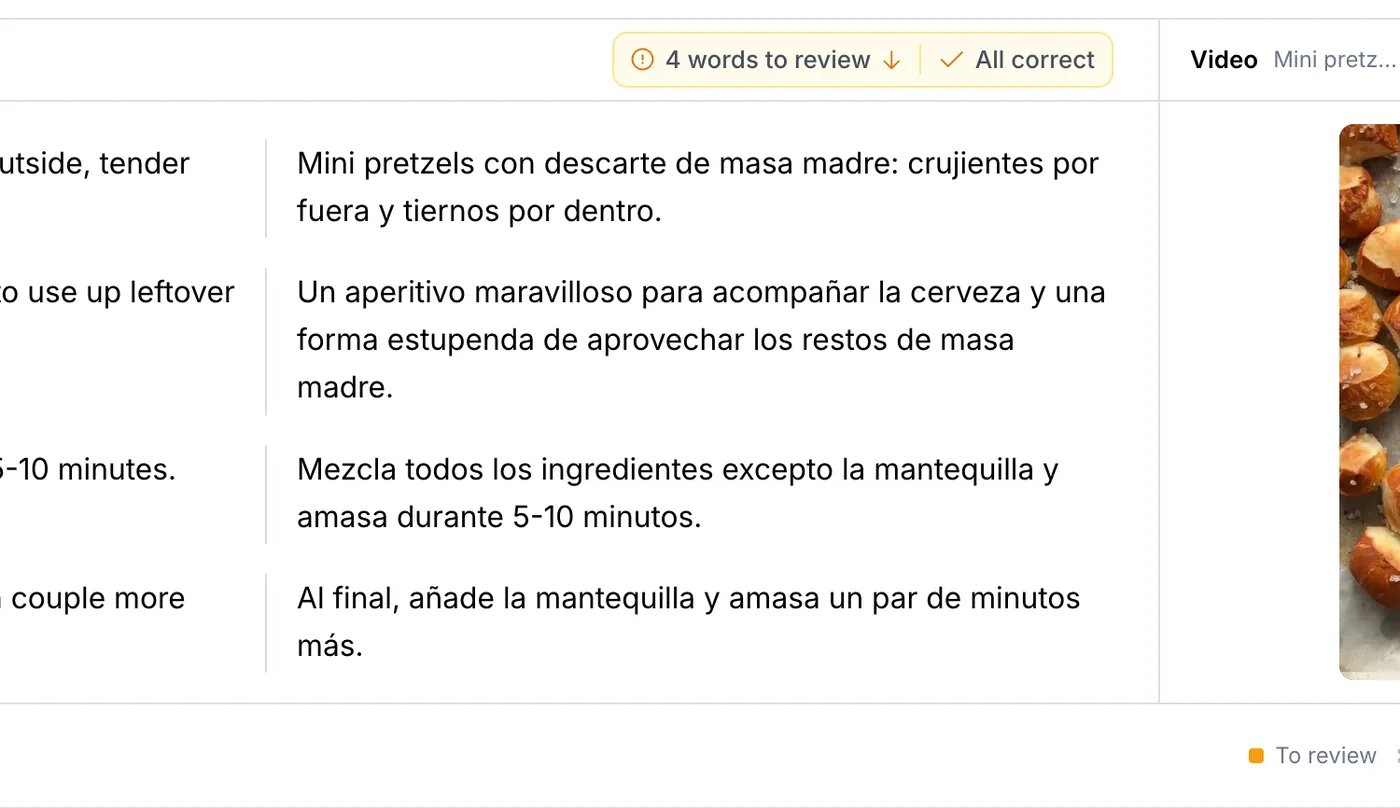
The translation is made from your corrected transcript, so you only proofread once. It sits next to the original line by line, and you can switch the subtitles on the video between both languages.
Export the translated subtitles
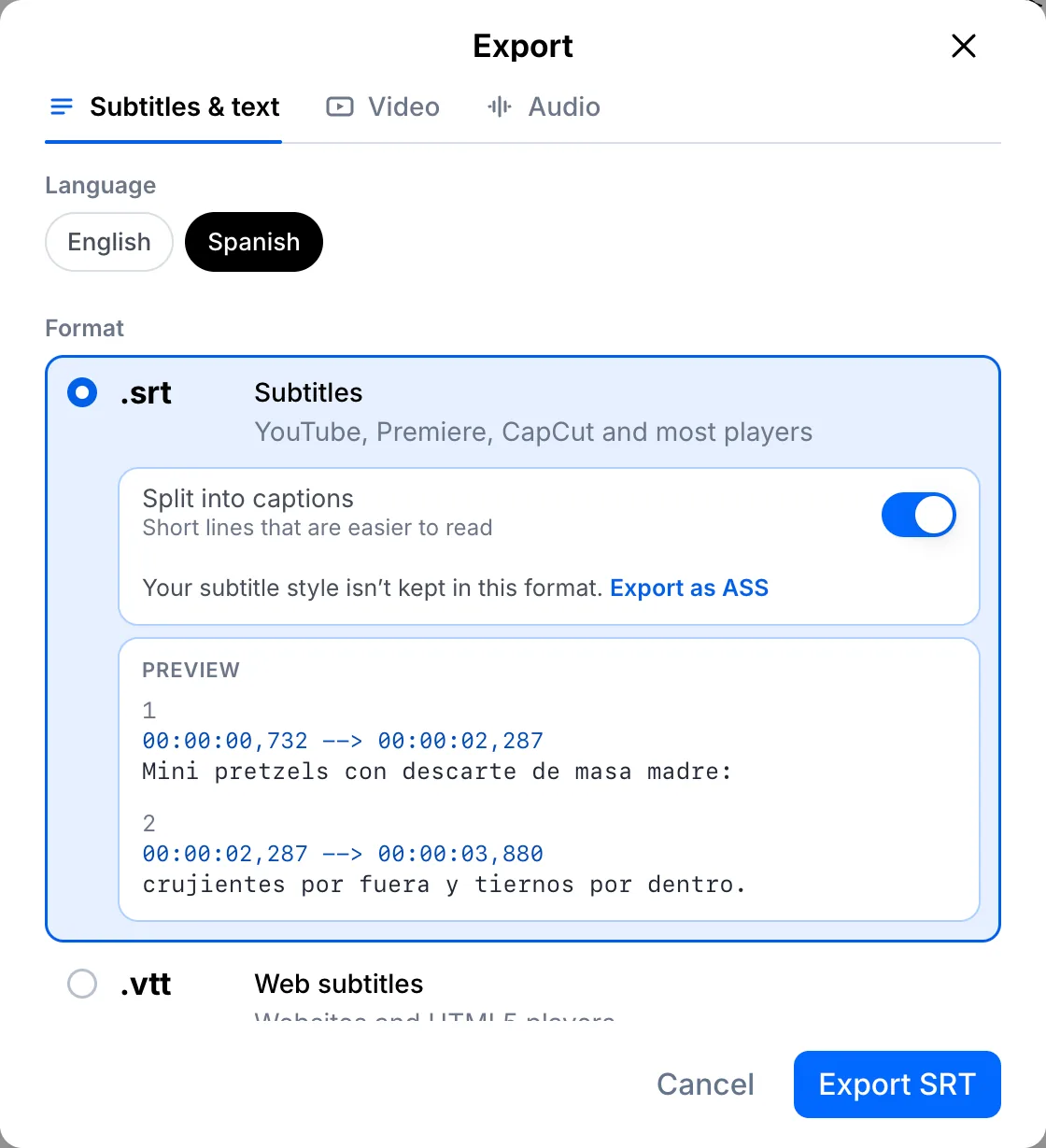
Click Export, choose the language and pick a format, such as SRT.
Your file, your transcript
Paste a link or upload a file. Every word comes back with a timestamp, ready to edit, translate or export.
- 30 free minutes
- No card needed
- Never used for AI training
Questions
Does translating use my transcription minutes?
No. Translation is a separate step and doesn't use minutes. The limit is the number of languages per file on your plan.
Can I edit the translation?
Yes. Click any line of the translation and type, just like in the original.
Next steps
 All tutorials →