How to organize files in folders and share them with your team
Create a folder, move your files into it, then share the whole folder with your team. Each teammate can view it or edit it, depending on the access you choose.
Step by step
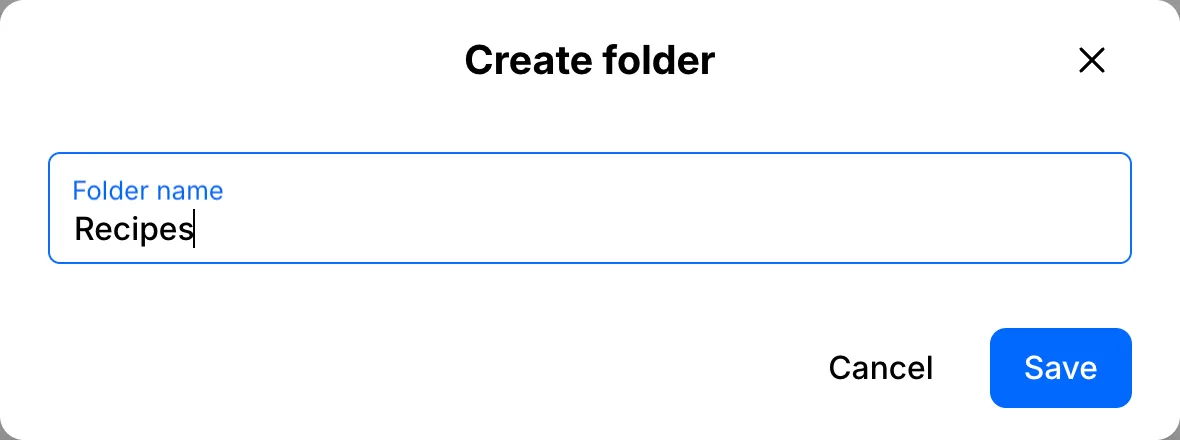
Create a folder
Click Create folder, type a name and click Save.
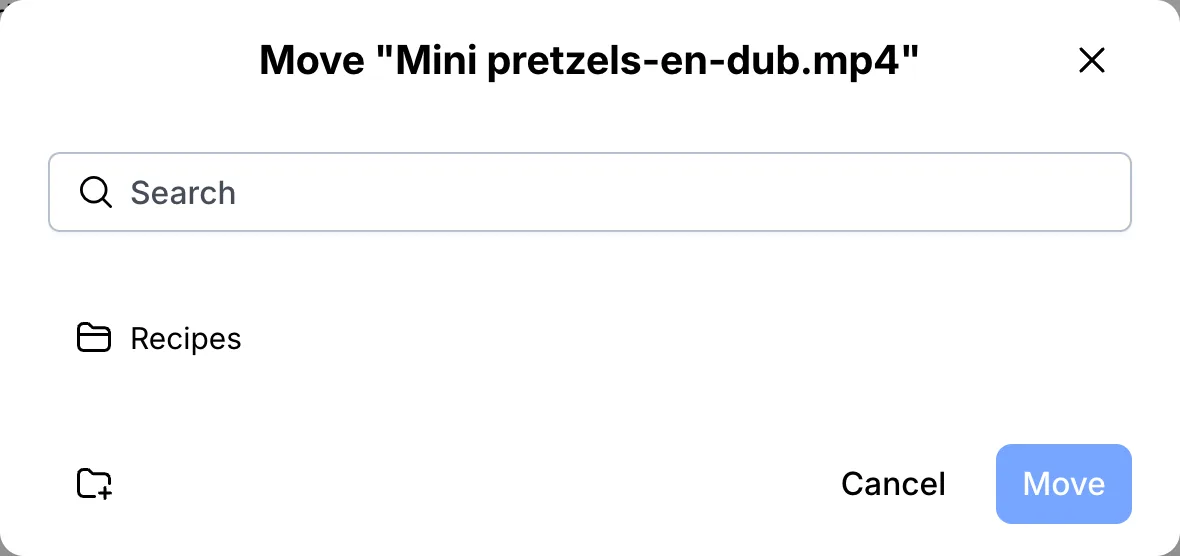
Move a file into it
Open the menu next to a file, choose Move, pick the folder and click Move.
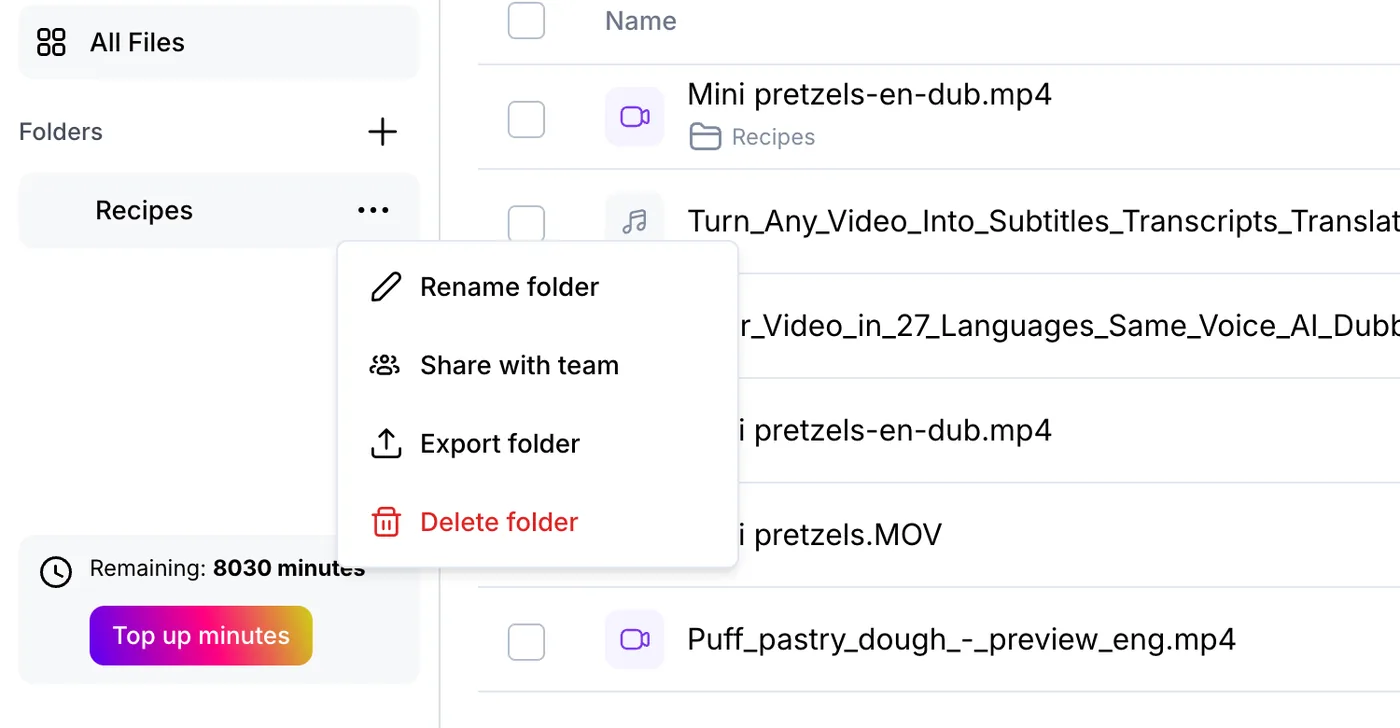
Share the folder with your team
Sharing with a team needs a team workspace, which comes with the Business plan for up to five people. Once you have one, open the folder menu and choose Share with team.
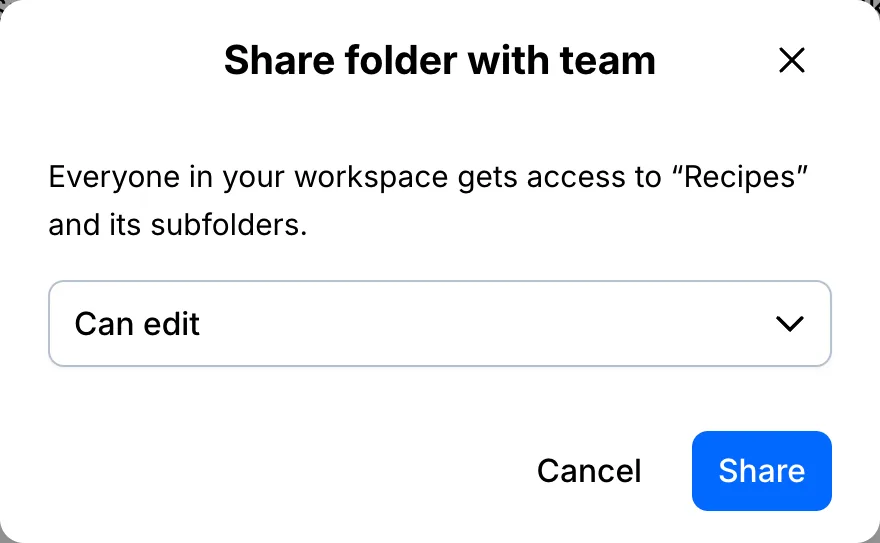
Choose the access
Can view lets teammates read, listen and export. Can edit also lets them fix the text, translate and use AI tools. Click Share, and the folder shows up for them under Team folders.
Your file, your transcript
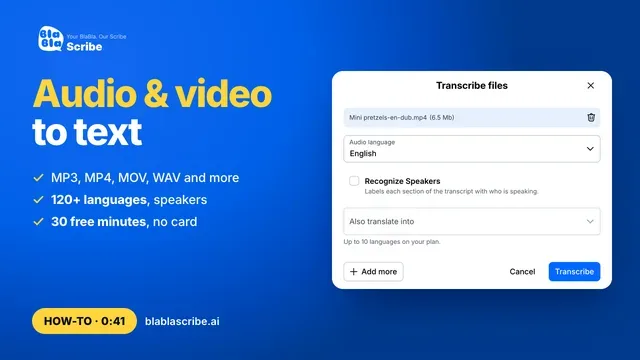
Paste a link or upload a file. Every word comes back with a timestamp, ready to edit, translate or export.
- 30 free minutes
- No card needed
- Never used for AI training
Questions
Do teammates use my minutes?
Yes. Members of a team workspace share the owner's minute pool and plan features.
Can I share just one file?
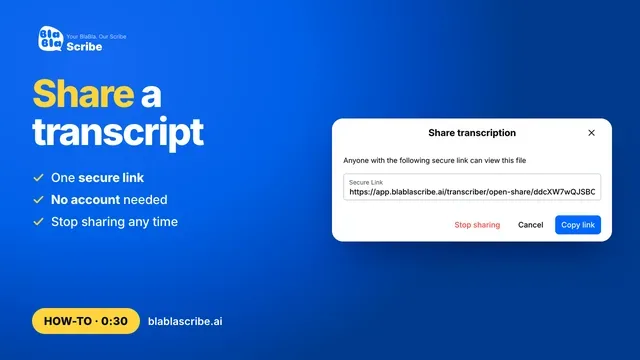
Yes. Use Share on the file to send a view-only link instead.
Next steps

 All tutorials →